
Calls Graine rings: booked calls and Ring now
Let Graine ring your users' phones like WhatsApp for the calls the agent, the user or your team booked: create the APNs key and the Firebase service account click by click, upload them, hand the SDK its push tokens and pushes, and test with Ring now.
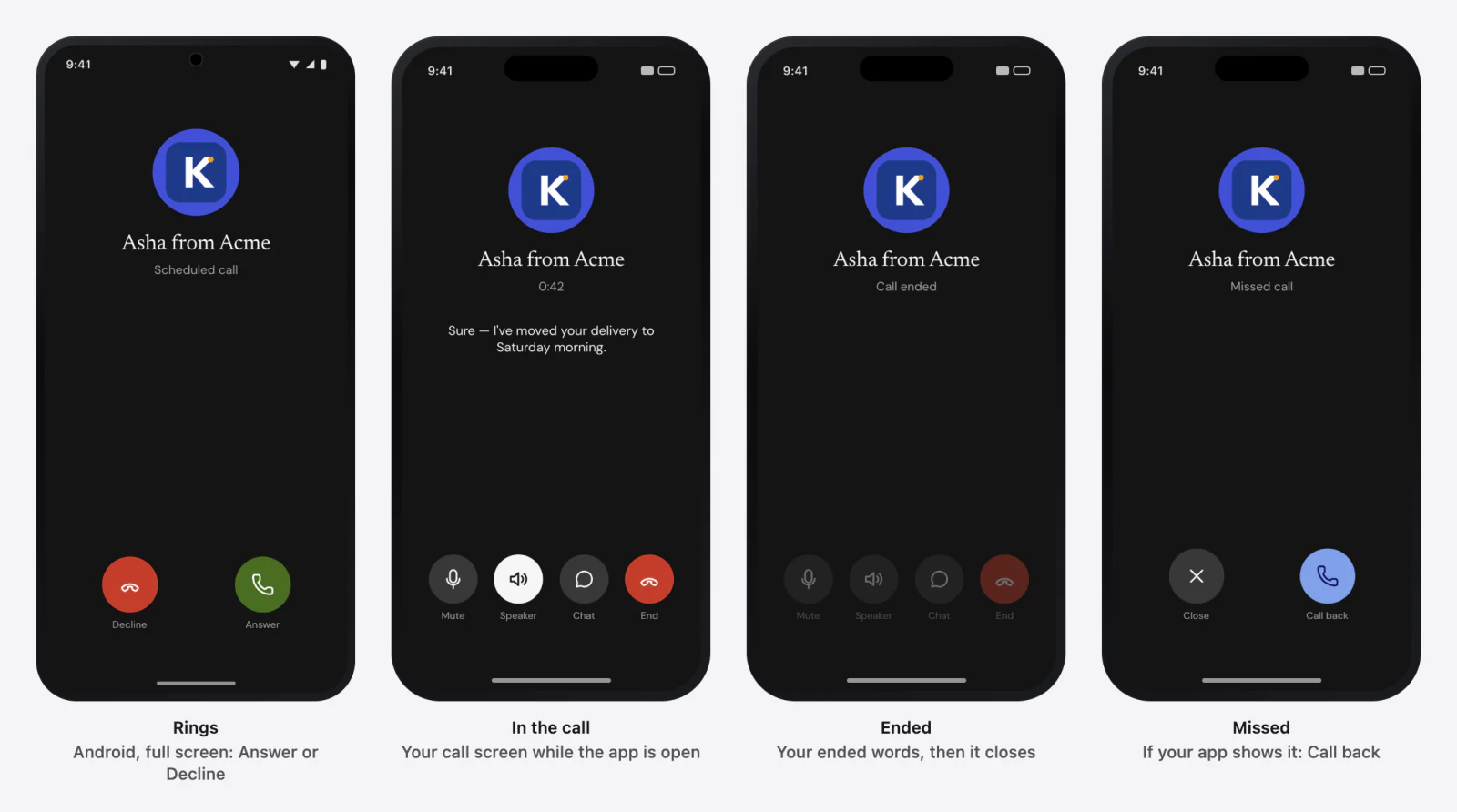
When a booked call is due, Graine rings the user's newest phone through your own
push credentials: the system's call screen on the lock screen (CallKit on
iPhone), a full-screen ring on Android. The user answers, and the agent opens
knowing it is the booked call and what it is about — it hears who_called =
scheduled and the booking's reason as call_reason. The ring itself carries no
reason and nothing about the user.
What it needs in the dashboard
| Where | Setting | Value |
|---|---|---|
| Workspace settings → In-app calling (an Admin) | iOS: Bundle ID, Team ID, Key ID, the .p8 file, Environment | Automatic (each device's own) unless you know otherwise. Wait for Checked and working. |
| Workspace settings → In-app calling | Android: Package name, Service-account key (.json file) | Wait for Checked and working. |
| Agent → Calls & scheduling → How it rings | Name on the incoming call, Ring for, After a missed call, ring once more after, Ring each user at most, Quiet hours | What the phone shows and how persistent the ring is |
| Agent → Calling Window | The hours the agent may ring | Every ring falls inside it, in the user's own time zone |
| Agent → Memory → Settings | Who is the user? | Rings go to the identified user's devices |
| Agent → Calls & scheduling | In-app call audio | WebRTC (recommended) or Standard: with the SDK's WebRTC module in your app (0.9.0), an answered ring carries its audio over WebRTC — Calls over WebRTC |
Create your credentials
You make these once per app, in your own Apple and Google accounts; you upload only the key file and its details.
iOS — an APNs key. You need an Apple Developer Program membership (Account Holder or Admin) and your app's bundle ID.
- developer.apple.com/account → Certificates, Identifiers & Profiles → Keys → +.
- Name it ("Graine calls"), tick Apple Push Notifications service (APNs); if asked, Sandbox & Production and Team Scoped (All Topics).
- Continue → Register → Download. The
.p8downloads once only. Note the Key ID (10 characters). - Your Team ID: the top right of your developer account, or Membership details.
- Identifiers → your bundle ID → Push Notifications enabled. In Xcode, the app target → Signing & Capabilities → Push Notifications, and Background Modes with Voice over IP and Audio, AirPlay, and Picture in Picture.
- In Graine: Workspace settings → In-app calling → iOS → Set up:
Bundle ID, Team ID, Key ID, the
.p8file, Environment Automatic (each device's own).
Android — a Firebase service account. You need a Firebase project that contains your Android app.
- console.firebase.google.com → your
project → Add app → Android → your package name → download
google-services.json into
app/; add Firebase Cloud Messaging to the app (below) — the SDK registers for pushes by itself. - Project settings → Cloud Messaging → Firebase Cloud Messaging API (V1) shows Enabled.
- Project settings → Service accounts → Firebase Admin SDK → Generate new
private key → Generate key. A
.jsondownloads; treat it like a password. - In Graine: Workspace settings → In-app calling → Android → Set up: the
package name and the
.jsonfile.
Never put the .p8 or the service-account .json in your app, a repository or an
email. Upload them in the dashboard, where they are encrypted with your
workspace's own key and never shown again.
Every detail, with screenshots: Hosted ringing → Create your credentials.
What to do, in order
- Upload the credentials (above) and wait for Checked and working.
- Hand the SDK its push token and every push: iOS registers its VoIP token itself once you enable VoIP pushes at launch; Android apps forward Firebase's token and messages in two lines.
- Identify the user — rings go to the identified user's devices seen in the last 30 days, newest first.
- Show the call screen while your app is open (as for calls the user places).
- Book a call — the agent in a conversation, the user from your app (the booking sheet), or your team — or test at once: Agent → Calls & scheduling → Ring a user now → the user's identifier → Ring now. → The phone rings within seconds; the dashboard shows what became of it.
- Hear the ring and its outcome: answered, declined (nothing rings again for 6 hours), missed (one more ring after your delay, if set), failed.
Answering over WebRTC. With the SDK's WebRTC module in the app, the SDK prepares the call while the ring is showing, so answering connects at once — over WebRTC, or, when WebRTC cannot set it up, over the WebSocket inside the same call. A declined, missed or expired ring lets go of what it prepared; nothing was dialled. Calls over WebRTC
The code, platform by platform
2. At every launch — iOS hands over a VoIP push only once this has run:
3. GraineInApp.shared.identify(["user_id": user.id]) after sign-in.
4. The call screen while the app is open — the lock screen uses the system's:
6. Hear the ring and the outcome:
A missed ring: GraineCallView shows Missed call with Close and Call
back for 30 seconds; for a screen of your own, calls.missedCall,
calls.callBack() and calls.dismissMissedCall().
Troubleshooting
| What you see | Why | Fix |
|---|---|---|
| Ring now says No device | The user has no app device seen in 30 days, or this device is not linked to them | Sign in to the app on the phone (identify), open it once, try again |
| The credentials show a problem | A wrong Key ID, Team ID or bundle ID, or a revoked key | Replace them in Workspace settings → In-app calling |
| It rings only with the app open (Android) | Notifications are refused, or the app's own messaging service does not forward its messages | Ask for notifications; an app with its own service calls GraineCalls.handlePush first in onMessageReceived |
| It never rings on iPhone | enableVoIPPushes not called at launch, Push Notifications or Voice over IP missing, or a simulator | Fix the capabilities; test on a real iPhone |
| It rang later than booked | Outside the user's calling window or inside quiet hours | Scheduled calls → What happens at the time |
In depth: Graine rings your app · Scheduled calls.