
The Garage
Where the agent's look is chosen — the 23 designs, every control on every tab and what it changes (the whole look, the assistant bar, the chat window, the call screen), the Setup card, saving and comparing, and how one saved design reaches your website and every SDK.
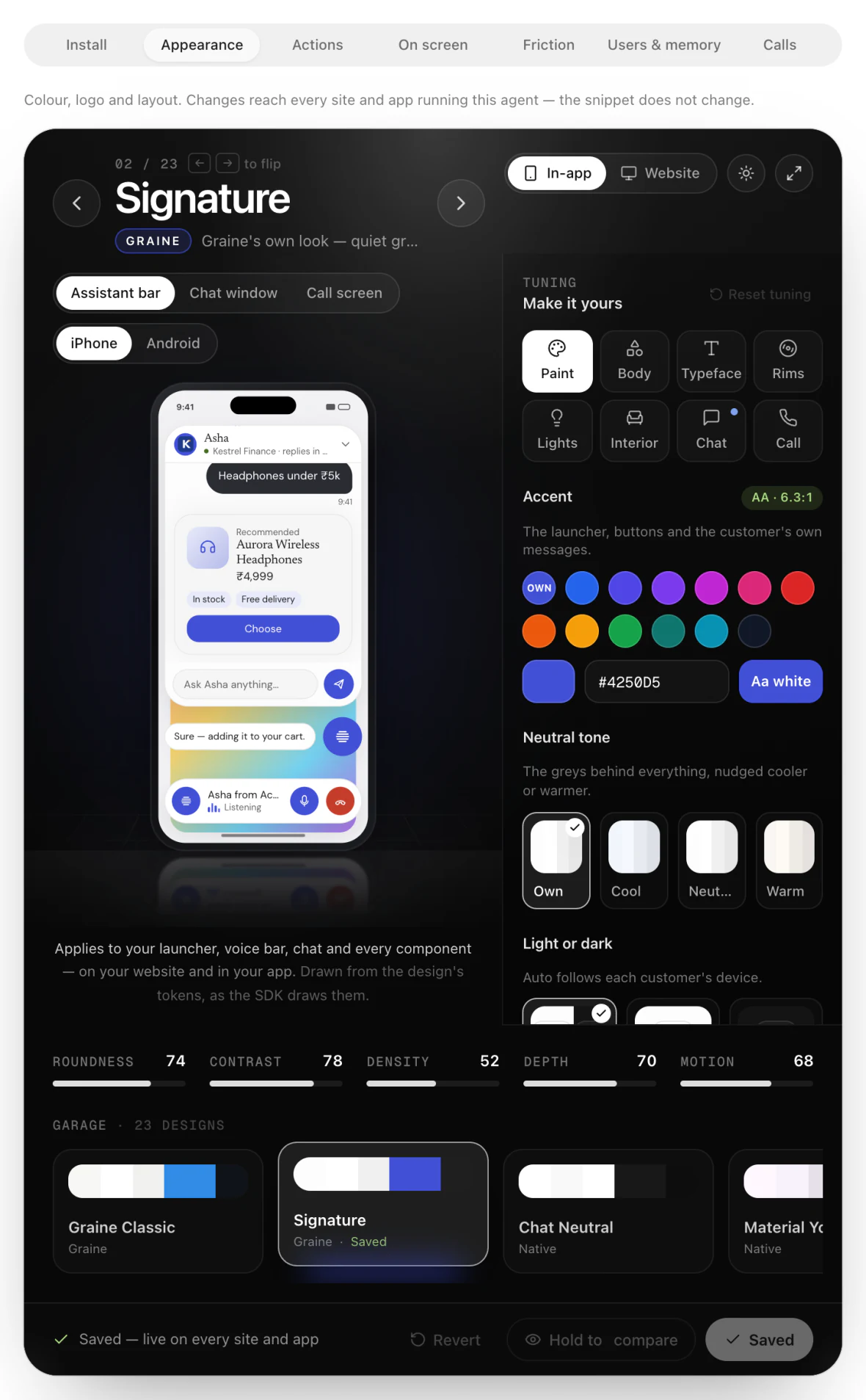
The Garage is where a brand decides how its agent looks: a showroom of designs you flip through like cars, each one tunable, previewed live as the website widget and as the in-app bar. One saved design is drawn everywhere the agent appears — the launcher, the voice bar, the caption, the chat and every component — on your website and in the React Native, Android, iOS and Flutter SDKs, with nothing in your code.
This page is the Garage itself. What your app does with the design — fonts, icons, your own UI — is on Your design.
Where it is
Agent → Embed & Widgets → Appearance. The Garage fills the top of the tab; the Setup card sits below it and is saved on its own. For a flow agent, Embed & Widgets is a tab of the flow builder's Agent setup, with five of the agent editor's seven tabs: Install, Appearance, Actions, On screen and Friction. The Garage is on Appearance in both.
An agent with no embed yet shows Not set up for the web yet and Set up embedding: press it first. A new embed starts on Signature; an older embed that never saved a design draws Graine Classic. Changing the look needs a role that can edit agents (Admins and Members).
The stage
| Control | What it does |
|---|---|
| ← →, or the arrows | Flip to the previous or next design. The counter reads 01 / 23 |
| In-app / Website | The preview: the in-app bar, drawn from the design's tokens the way the SDKs draw them — or the real website widget, reloaded as you change things (with Show open / Show closed) |
| Preview in dark mode / light mode | Previews the other scheme. It changes nothing saved; when the design is pinned to light or dark it says so, and the choice lives under Paint |
| Assistant bar / Chat window / Call screen | What you are designing, and what the preview shows — see Tuning. The call screen is the app's only |
| iPhone / Android | The phone the in-app preview is drawn on |
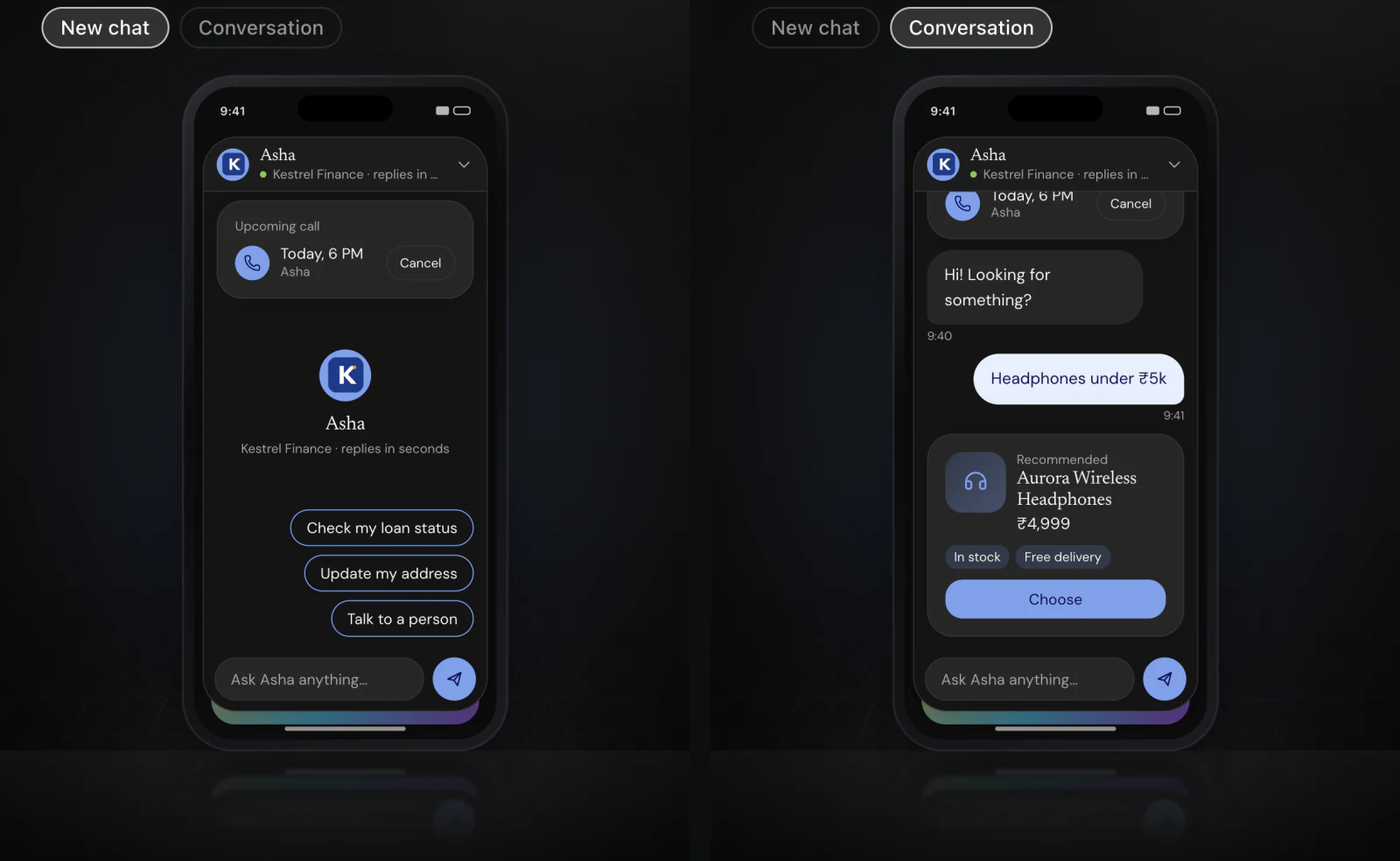
| What the chat shows | On Chat window: New chat, Conversation or Returning customer in the app; Live chat or Returning customer on the website |
| Moment of the call | On Call screen: Scheduled, Ringing, Connecting, On call, Ended or Missed |
| Open the showroom | The Garage full screen. Esc leaves |
| The bars | Roundness, contrast, density, depth and motion, at a glance |
The in-app preview shows the agent's first component, or a sample card when it has none. Flipping to another design keeps your accent, your light-or-dark rule, your logo as the launcher and what is yours on the Chat and Call tabs; each design remembers its own tuning when you flip back to it.
The designs
| Design | Family | |
|---|---|---|
| Graine Classic | Graine | The look the widget has always had |
| Signature | Graine | Graine's own look — quiet greys, a slate-and-indigo voice, the grain |
| Chat Neutral | Native | Quiet greys and system type; your brand shows up only in the accent |
| Material You | Native | Google's Material 3: tonal surfaces, soft corners, springy motion |
| iOS Native | Native | Feels like it shipped with the iPhone: system type, system blue, grey bubbles |
| Minimal Mono | Modern | Black, white and one hairline border |
| Fluent | Enterprise | Microsoft's calm, businesslike Fluent 2 |
| Enterprise Grid | Enterprise | IBM Carbon: square, precise and serious |
| Fintech Clear | Enterprise | Navy ink, a steady teal accent and soft layered shadows, for screens about money |
| Liquid Glass | Modern | Frosted, floating panels that let the page glow through |
| Soft & Playful | Modern | Rounded, pastel and friendly |
| Desktop Buddy | Modern | A friendly little computer: clean white windows, a blue pointer, a bit of bounce |
| Swiss Grid | Modern | Black type on white, square corners, hairline rules, Swiss red for the customer's messages |
| Precision | Modern | Dark-first and dense, with a single indigo accent |
| Japandi Calm | Modern | Warm stone, muted sage, soft serif titles and slow, quiet motion |
| Neo-Brutalist | Expressive | Thick black outlines, hard shadows, loud colour |
| Editorial | Expressive | A well-set magazine: serif type, warm paper, ink-red accents |
| Black & Gold | Expressive | Gold on near-black with high-contrast serif titles |
| Retro Terminal | Expressive | Green phosphor on black, monospace everything |
| Warm & Earthy | Expressive | Caramel, cream and coffee tones with soft serif titles |
| Bauhaus | Expressive | Circles and squares in the three primaries, in geometric type |
| Gamified | Expressive | Chunky and bright, with pressable bottom edges and bold rounded type |
| High Contrast | Enterprise | Big type, strong edges, no fades — easy to read for everyone |
Every design has a light and a dark version, and every text colour in both is checked for legibility against what sits behind it.
Tuning
Every control in the Garage, tab by tab. The rail beside the preview, headed Make it yours, has eight tabs: Paint, Body, Typeface, Rims, Lights and Interior set the whole look, on every surface; Chat sets the chat window and Call the call screen. Choosing Chat window or Call screen above the stage opens its tab, and opening the tab turns the preview to it. A tile that is the design's own value is marked · own, and choosing it saves nothing of yours: the design's own value follows the design. Reset tuning goes back to the design's own look and keeps your accent, your light-or-dark rule and your logo, and what is yours on the Chat and Call tabs: the words, the starters, timestamps, the window size, the pieces the chat shows, and the call's buttons, captions, timer and ring.
The whole look
| Tab | Control | Values | What it changes |
|---|---|---|---|
| Paint | Accent | The design's own; Blue, Indigo, Violet, Fuchsia, Pink, Red, Orange, Amber, Green, Teal, Cyan, Ink; or any colour, by picker or hex | The launcher, buttons and the customer's own messages. A badge grades the contrast of the label on it (AAA, AA, AA large, Low), and a swatch whose label would not read is not offered |
| Neutral tone | Own, Cool, Neutral, Warm | The greys behind everything, nudged cooler or warmer | |
| Light or dark | Auto, Light, Dark | Auto follows each customer's device; Light or Dark draws that version everywhere | |
| Body | Roundness | From Square to Twice as round, the design's own in the middle | The corners of every surface — the bar, the chat window, bubbles, cards and buttons |
| Launcher shape | Circle, Squircle, Rounded, Square, Pill | The launcher; the chat's avatar takes the same shape (a pill's as a circle) | |
| Shadow | Own, Flat, Soft, Medium, Strong, Hard | How far the bar, the chat window and cards lift off the page. Hard is a solid offset shadow | |
| Typeface | Body font | System, or one of 24 families | Messages, captions, component text |
| Heading font | Same as body, or one of the 24 | The chat title and component titles | |
| Rims | Launcher glyph | 17 glyphs — waveform, audio lines, sparkles, microphone, chat bubble, headset, bot, phone, zap, star, orbit, a filled sparkle, buddy, filled chat dots, a filled voice equaliser, the grain and the grain voice — or Logo | What sits on the launcher and the bar's avatar, and the chat's avatar when it is set to Glyph. Logo shows the logo uploaded in Setup |
| Icon style | Outline, Filled, Duotone, Sharp | The SDK's own icons: microphone, end call, send, the chevron and the rest | |
| Lights | Motion | Own, None, Subtle, Lively | How things move when they open, arrive and react, and how fast the bar's meter moves. None stills everything, as does a device set to reduce motion |
| Glass | Own, On, Off | Translucent, frosted surfaces over whatever is behind them | |
| Interior | Bubbles | Filled, Outline, Minimal | How messages sit in the chat: each side in its own colour, outlined, or the agent's words on the page and the customer's on a soft tint |
| Frame | Plain, Window | Window opens the chat, captions and cards as desktop windows — traffic lights and a mono title | |
| Density | Compact, Comfortable, Spacious | The room around and between things |
The 24 families, eleven of them with Devanagari, are listed on Your design → Typefaces.
The assistant bar
The Assistant bar view is the in-app surface a customer meets on a call: the compact chat window above the bar, the caption beside the launcher, and the bar itself — your avatar, the heading, Listening with a meter, the microphone in your accent and the red end button. On the Website surface it is the real widget, which Show open / Show closed opens and closes.
It has no tab of its own: every part of it comes from the whole look and from the Setup card.
| Part | Drawn from |
|---|---|
| The bar's fill, outline and corners | Neutral tone, Light or dark, Glass, Roundness |
| How it lifts off the app | Shadow |
| The avatar | Launcher glyph (or your Logo from Setup) on your Accent |
| The name | The Heading from Setup, in the Body font |
| The meter | Motion |
| The microphone and the end button | Accent, Icon style |
| The caption | The Body font, Roundness and Shadow; with Frame set to Window, a desktop window |
| The launcher | Launcher shape, Launcher glyph, Accent |
The chat window
The Chat tab. The header, the bubbles and the composer take their colours from the design; what the chat says and which pieces it draws are set here.
| Control | Values | What it changes |
|---|---|---|
| Window size | Compact (the design's own), Large, Full screen | How big the chat opens. Compact is the window above the bar. On a phone, Large is a sheet over most of the screen, closed with a swipe down, and Full screen is the whole screen, closed with the chevron at the top left. In a tablet app, Large opens a panel in the corner and Full screen fills the screen; on a website wider than a phone, both open a panel — Chat → Window size |
| Title and subtitle | Up to 40 and 60 characters | The header's words. Empty fields use your heading and "Online"; "Connecting…" stands in for the subtitle until the chat is connected |
| Avatar | Logo, Glyph, None | Who the customer is talking to, in the header and the empty chat. With no logo uploaded, Logo shows the launcher glyph |
| Header | Surface, Accent | The bar across the top of the chat: the design's surface, or your accent |
| New conversation button | Shown (the design's own), Hidden | The compose button in the header that starts a fresh conversation. It shows while earlier messages are on screen. Hidden, there is none — your app can still start one from its own button (Start a new conversation) |
| Background | Plain, Tint, Pattern | Behind the messages: the page, the page washed with your accent, or a quiet dot pattern |
| Booked calls | Shown (the design's own), Hidden; Card title, up to 40 characters | The card at the top of the chat with the customer's upcoming calls, each with Cancel. An empty title reads "Upcoming call" or "Upcoming calls". Drawn in your apps' chat window (React Native's from 0.42.0) and, from 0.8.0, in the website's chat, with Book a call where booking is available (the booking sheet); hidden, there is no card and no Book a call in the chat, and your app can still list and cancel the calls itself (Scheduled calls → From your app) |
| Earlier messages | Shown (the design's own), Hidden | A customer who comes back sees the conversation from before, under its date (Coming back to a conversation). Hidden, the chat opens empty, like a new one, with your starters — and your assistant still remembers the conversation |
| Starters | Up to 4, up to 40 characters each | Taps that begin a new chat, above the composer — "Track my order", "Book an appointment", "Talk to someone". A tap sends the words exactly as written |
| Composer → Placeholder | Up to 40 characters | What the empty composer says. Empty: "Message…" |
| Timestamps | Shown, Hidden | The time under each message |
What the chat shows, above the stage, previews each moment: New chat (the empty chat and your starters), Conversation (bubbles, a component and timestamps) and Returning customer — yesterday's messages under their date, New conversation in the header and a booked call at the top, or, with Earlier messages hidden, a chat that opens like a new one. Changing Booked calls, Earlier messages or New conversation button turns the preview to the returning customer. With Window size, the phone draws the size you chose — the window above the bar, the sheet over the dimmed app, or the whole screen.
On the Website surface the preview is the real widget at its size: Live chat talks to your assistant, and Returning customer opens the widget on a sample of yesterday's conversation, connected to nothing. From 0.8.0 the website's chat draws the booked-calls card too, with Book a call where booking is available — the call rings the visitor's app.
The call screen
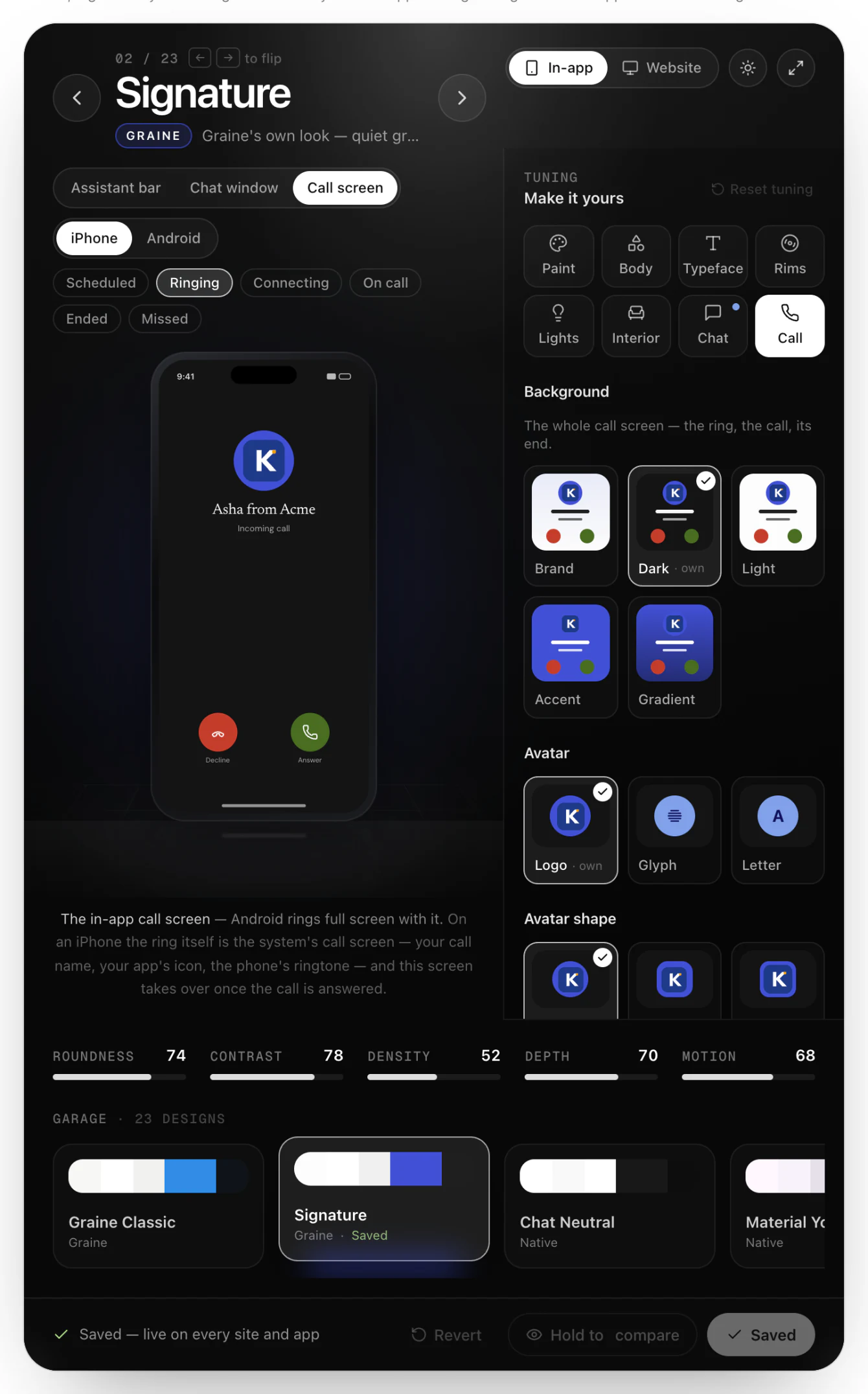
The Call tab: the screen of an in-app call, the ring included. Every colour is checked for contrast, as for the rest of the design.
| Control | Values | What it changes |
|---|---|---|
| Background | Brand, Dark, Light, Accent, Gradient | The whole call screen — the ring, the call, its end. Brand is your page colours with the accent washed in and follows light and dark; Dark and Light are always so; Accent is your accent, edge to edge; Gradient your accent falling to a deeper shade |
| Avatar | Logo, Glyph, Letter | The agent's face on the screen |
| Avatar shape | Circle, Squircle, Rounded | The shape the avatar is drawn in |
| End button | Round, Pill | The button that ends the call |
| Buttons on a call | Mute, Speaker and Chat, in the order you set; End is always there | The buttons on a connected call |
| Captions | Shown, Hidden | The line being said, under the name |
| Timer | Shown, Hidden | How long the call has run, under the name |
| Ringtone | Phone's own, Graine, Soft — each with a play button | The ring. Android and the app's own ring play it; an iPhone rings with its own call screen and ringtone |
| Words | Scheduled call ringing, Other call ringing, Connecting, Ended, Missed — up to 40 characters each | Under the name, for each moment; empty fields use the words shown |
The name on the call screen is the one the phone shows: Calls & scheduling → Name on the incoming call when it is set, else your heading. Moment of the call, above the stage, shows each moment with your settings.
Every state of a call
One screen, four states. The preview's state switcher shows each of them with your settings.
| State | The screen shows | Drawn from |
|---|---|---|
| Ringing — an agent's call, not yet answered | The avatar, the call name, your Other call ringing words — or, for a call Graine rang at a booked time, your Scheduled call ringing words — Decline and Answer, and the ringtone | Background, avatar and its shape, the decline and answer colours, Ringtone |
| Connecting — answered, or placed by the customer | The avatar, the call name, your Connecting words, the end button | The same, with End button |
| Connected | The avatar, which pulses while the agent speaks; the call name; the timer and the caption if on; your Buttons on a call. Mute and Speaker draw in their active colours while on | Timer, Captions, Buttons on a call, the button and active-button colours |
| Ended — hung up, declined or failed | Your Ended words, or why it could not connect, for a moment before the screen closes | The same as connected, without the buttons |
| Missed — a ring nobody answered | Your Missed words, with Close and Call back, for 30 seconds while the app is open. Android also leaves a missed-call notification with Call back | Background, avatar, the button colours |
Where each is drawn
| Surface | Drawn from the Garage |
|---|---|
| The chat window | On every SDK and on websites |
| Android's ring and call screen | All of it — the full-screen ring and the call |
| iOS's call screen while your app is open | All of it |
| iOS on the lock screen, or with your app in the background | The system's call screen: it shows the call name, your app's icon and the ringtone, and nothing else can be styled |
| React Native and Flutter | The same native screens, with callScreen: "sdk". With callScreen: "app" the screen is yours — the call's tokens are there to match it |
A new design reaches the call screen when the app next starts, as everywhere else. The device keeps the last design it fetched, so a ring that wakes a closed app is drawn in it; a device that has never fetched one draws Graine Classic's screen.
Saving
The footer of the Garage says where you are: Unsaved changes to the design, or Saved — live on every site and app.
- Save design saves the design. Design saved — Live on every site and app running this agent — no snippet change needed.
- Revert throws away what you have not saved.
- Hold to compare shows the saved design while you hold it, and your changes when you let go.
The Setup card
Below the Garage, saved with its own Save setup.
| Setting | Values | In apps? |
|---|---|---|
| What visitors get | Call and chat, Voice only, Chat only | Yes |
| Opens on | Call or Chat, when both are offered | Yes |
| Corner | Bottom right or bottom left | Websites only |
| Heading | The title over the conversation, up to 60 characters | Yes |
| Launcher tooltip | The hint beside the launcher, and the label on a pill launcher; up to 40 characters | Websites only |
| Call audio | Standard, or High quality (WebRTC) | Yes — how the audio travels |
| Logo | PNG, JPG, SVG, GIF or WEBP, up to 2 MB, with Background behind the logo: Brand colour or White | Yes |
| Show “Powered by Graine AI” | A small line under the widget; off on plans that allow white-labelling | Websites |
| Loading | Dots, Pulse, Ring, Bars or Your logo; Small, Medium or Large; Calm, Normal or Quick; the accent or a colour of its own | Yes |
| Loading words | While connecting, while reconnecting, while the assistant thinks, while a component loads — up to 40 characters each | Yes |
A logo is saved the moment you upload it. It is trimmed of empty margins and drawn whole wherever it stands in for the glyph — see Your design → Your logo.
How a design reaches every phone
One saved design, resolved once into light and dark tokens, drawn by every surface.
- Save design stores the design with the agent's embed.
- A session asks for it. A website asks when a page loads the widget. Each SDK asks once each time the app starts and reuses the answer until the next start — coming back from the background is not a new start.
- Graine resolves it into a light and a dark set of tokens — colours, type, corners, spacing, shadows, motion, the launcher and the loader — every colour checked for contrast, and serves them with the session.
- The SDK draws from the tokens, picking light or dark by the design's rule or the device's setting, and fetches the design's typeface from Graine the first time it needs it, keeping it on the device.
A save reaches a new page load or app start within about 30 seconds. What the design covers on each surface is in Your design → What the SDK draws. An SDK older than React Native 0.38.0 or Android, iOS and Flutter 0.3.0 draws its own classic bar instead.
Calls follow the design too, through the Call screen tab — except on a locked iPhone, where the call screen is the system's (Where each is drawn).
When the phone does not match the Garage
| What you see | Check |
|---|---|
| The website changed, the app did not | The app has not restarted since you saved — quit it fully and open it again. Or it draws its own bar instead of the SDK's, or its SDK is older than 0.38.0 / 0.3.0 |
| Neither changed | You saved the Setup card but not the design, or the other way round: each has its own save |
| The typeface is the system font | The phone was offline when the font was first needed, or (React Native) the provider has no loadFont — Your design → Typefaces |
| The launcher shows a glyph, not your logo | Logo is not chosen under Rims, or no logo is uploaded in Setup |
| The Playground's live agent looks different | It opens in the default look — compare against the Garage's previews or a real page |
| Earlier messages, the New conversation button or the booked-calls card ignore the Chat tab | The app's SDK is older than 0.7.0 (React Native 0.41), or it has not restarted since you saved |
| No booked-calls card on the website, or in a React Native app | Booked calls is hidden on the Chat tab, the page has not reloaded since, or the app's SDK is older than 0.8.0 (React Native 0.42.0) |