
Set up everything from scratch
One ordered walkthrough of the dashboard, from an empty workspace to an agent your app and website can talk to, remember users with, book calls with and ring: the agent, the key and the allowed domains, who the user is, calls and scheduling, push credentials, the design, the demo's agent packs, a test with the demo apps, and the go-live checklist.
Every dashboard step, in the order that works, with what each screen looks like. The code side of each step is in the how-tos — Use cases by SDK. Plan about an hour, plus whatever time your Apple and Google accounts take.
1. The workspace and the agent
- Sign in at www.graine.ai with your work email, or accept your invitation to an existing workspace. The steps that change workspace settings (step 5) need an Admin.
- Create an agent from the dashboard's home, and finish it in the agent's settings: its prompt, voice and languages, and its Welcome message.
- Custom Variables: list the variables the prompt reads, including
who_calledandcall_reason, which calls fill in — what your app can send is on Variables. - Calling Window: the hours the agent may ring people (for example 08:00–21:00). Every call Graine rings falls inside it, in the user's own time zone.
- Try it in the dashboard — a test call and a chat — before your app does.
An app and a website are best served by an agent each, cloned from the first (More → Clone this agent): each surface gets its own actions (why).
2. Embed & Widgets: the key and the allowed domains
Agent → Embed & Widgets → Set up embedding, then the Install tab:
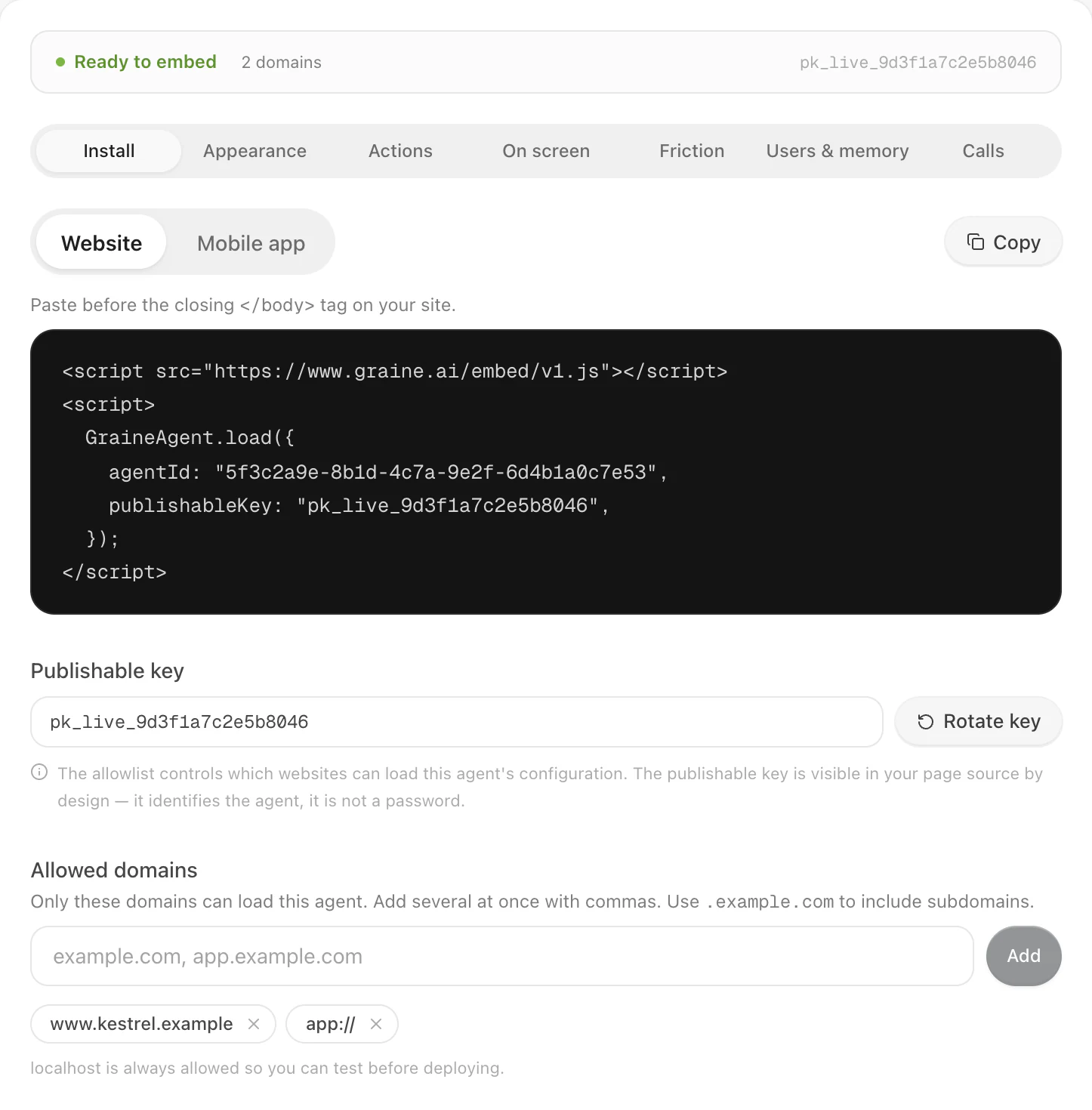
- Copy the publishable key (
pk_live_…) into your app. It is public by design: it selects the agent and cannot read your data. - Allowed domains: add
app://for your iOS and Android apps — without it, every request from an app is refused — and each website host the agent will be on, staging included. The website snippet on this tab is ready to paste.
3. Memory: who the user is
Agent → Memory → Settings (the same section as Embed & Widgets → Users & memory):
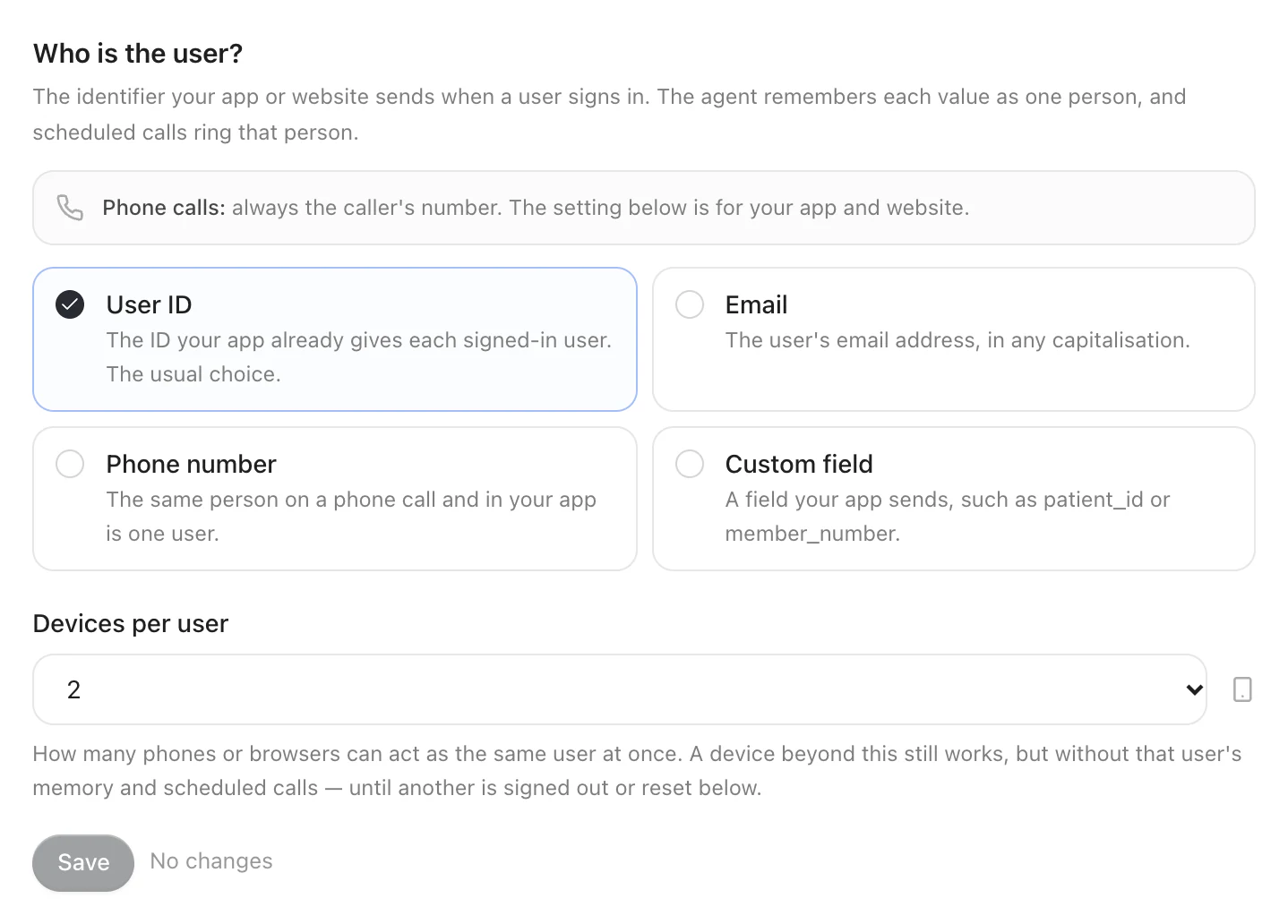
- Remembers users across chats and calls: on.
- Who is the user? — User ID (the usual choice), Email, Phone
number, or Custom field with the name your app sends (for example
customer_id). Use the same field on every agent the user meets, app and website: one value is one person everywhere. - Devices per user: 2 by default — the phones or browsers that can act as one user at once.
- Shared with, Keep memories for, What to remember: this agent or the whole workspace; 365 days by default; what to keep and never keep.
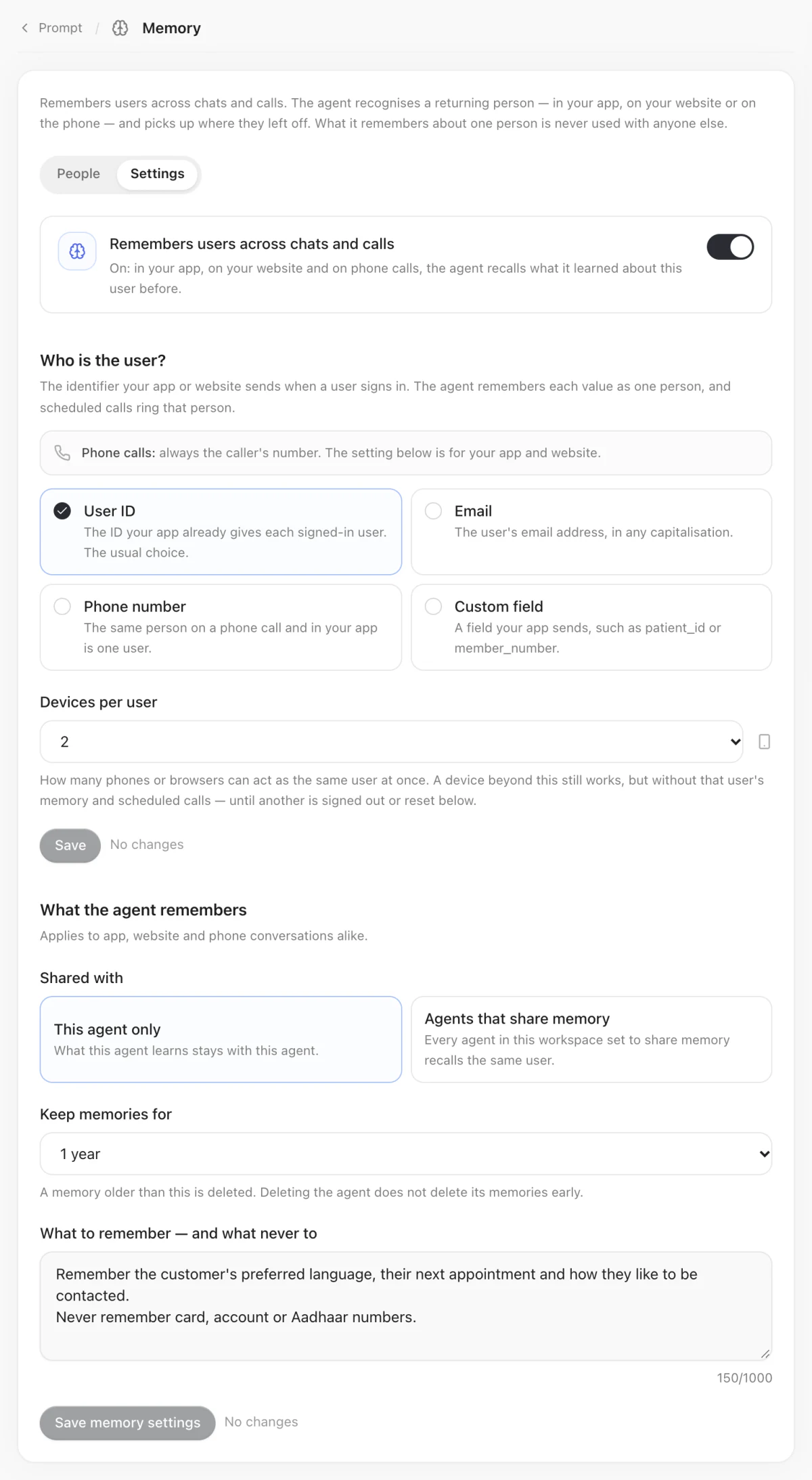
Memory → People is where your team later finds a user, sees what is remembered, forgets it, and resets their devices.
4. Calls & scheduling
Agent → Calls & scheduling (also Embed & Widgets → Calls):
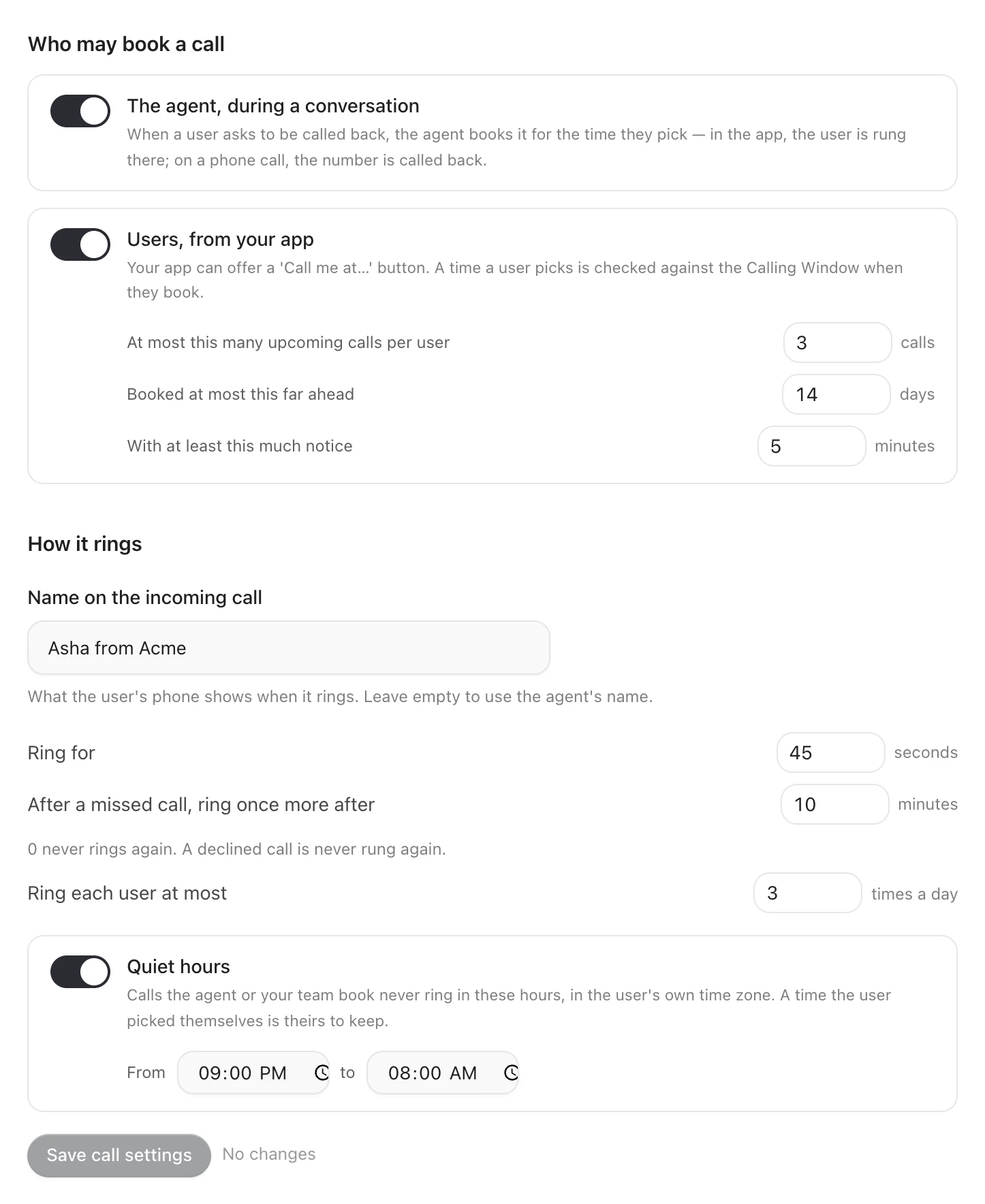
- Who may book a call: The agent, during a conversation (it books a call
back when the user asks) and Users, from your app (the SDK's booking sheet
and
scheduleCall), with At most this many upcoming calls per user, Booked at most this far ahead and With at least this much notice. - How it rings: Name on the incoming call (what the phone shows), Ring for, After a missed call, ring once more after, Ring each user at most, and Quiet hours (calls the agent or your team book never ring in them).
- In-app call audio: WebRTC (recommended) or Standard — saved at once, picked up by each app at its next start. With the SDK's WebRTC module in your app (0.9.0), calls in both directions carry their audio over WebRTC, steadier on a weak network; Standard keeps every call on the WebSocket, whatever the app chose — choose it only if a network your users are on blocks WebRTC (Calls over WebRTC).
- The agent's Calling Window (step 1) applies to every booked call.
There is no repeating schedule: for a daily check-in, the agent offers and books the next call at the end of each conversation, or the user books from the sheet.
5. Workspace settings → In-app calling
An Admin uploads your push credentials once, so Graine can ring your app:
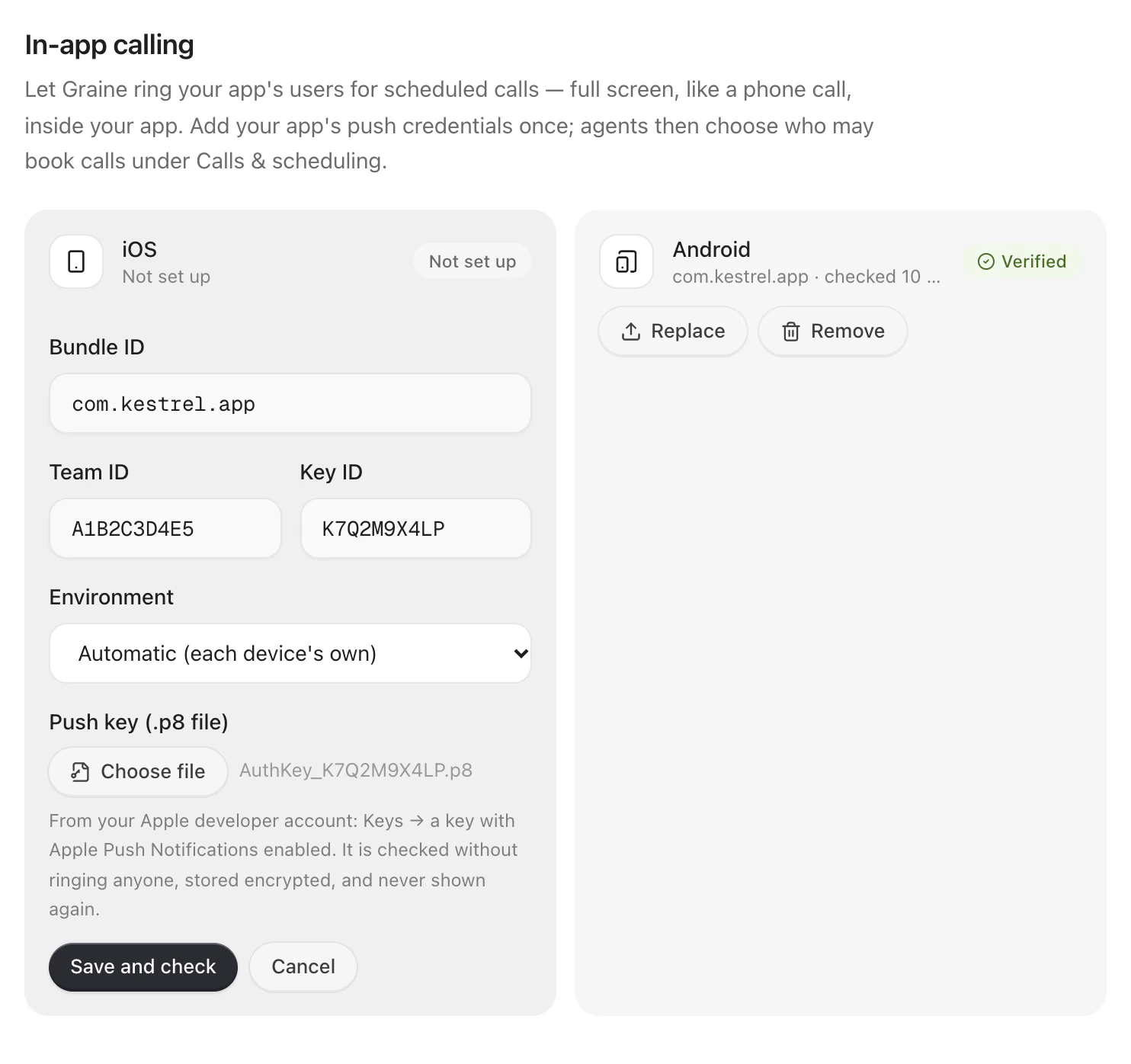
- iOS: Bundle ID, Team ID, Key ID, the
.p8key file, and Environment — Automatic (each device's own), unless you know you need Production (App Store and TestFlight) or Sandbox (development builds). - Android: Package name and the Service-account key (.json file).
Wait for Checked and working. on both. Creating the APNs key and the Firebase service account, click by click: Calls Graine rings → Create your credentials.
Upload the .p8 and the .json here and nowhere else — never in your app, a
repository or an email. They are encrypted with your workspace's own key and never
shown again.
6. The design, in the Garage
Embed & Widgets → Appearance: pick a design, tune it on the rail's tabs and on the Chat and Call tabs, and Save design. Under Setup: What visitors get (call, chat, or both), Opens on, Call audio, your logo, heading and loader.
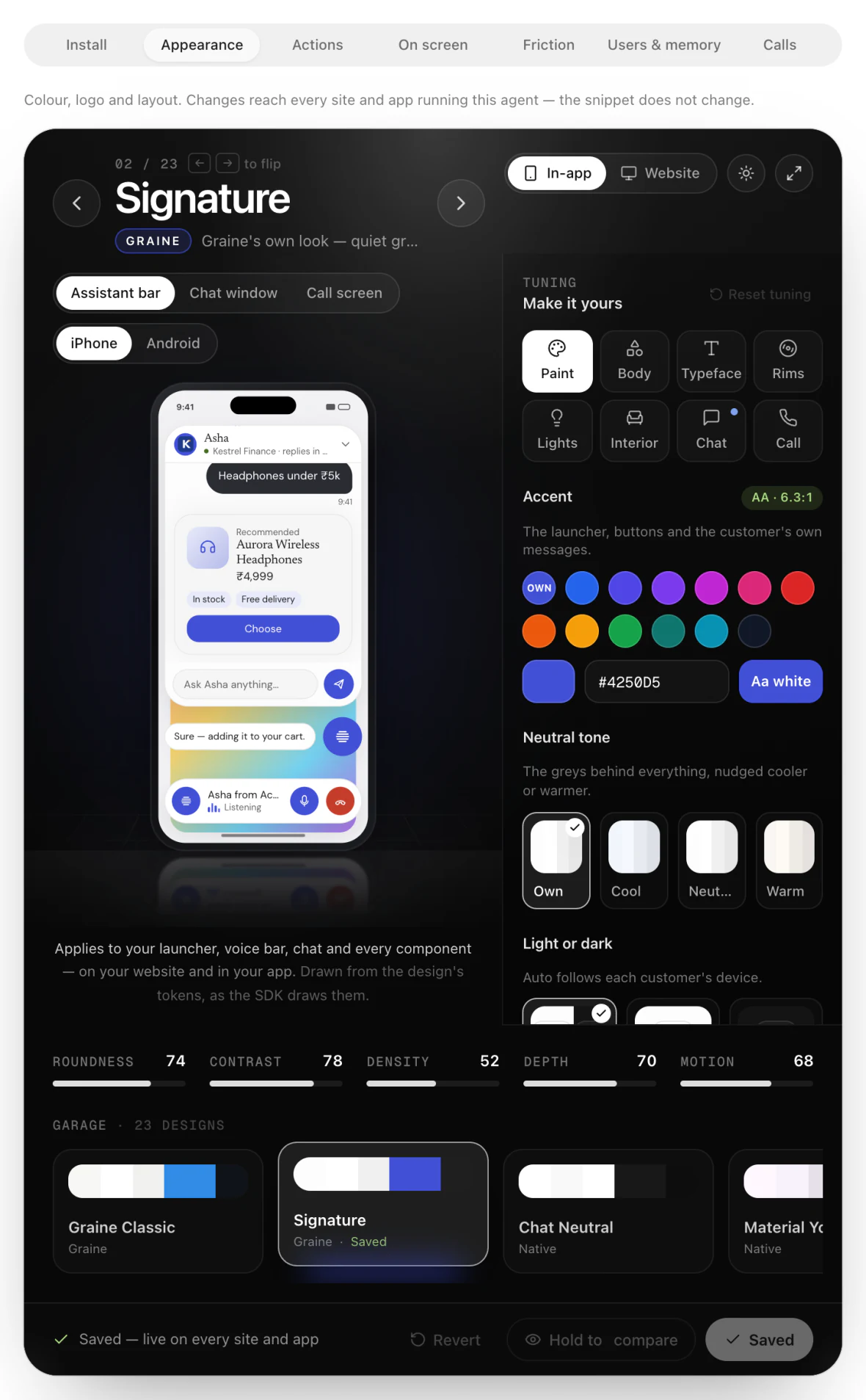
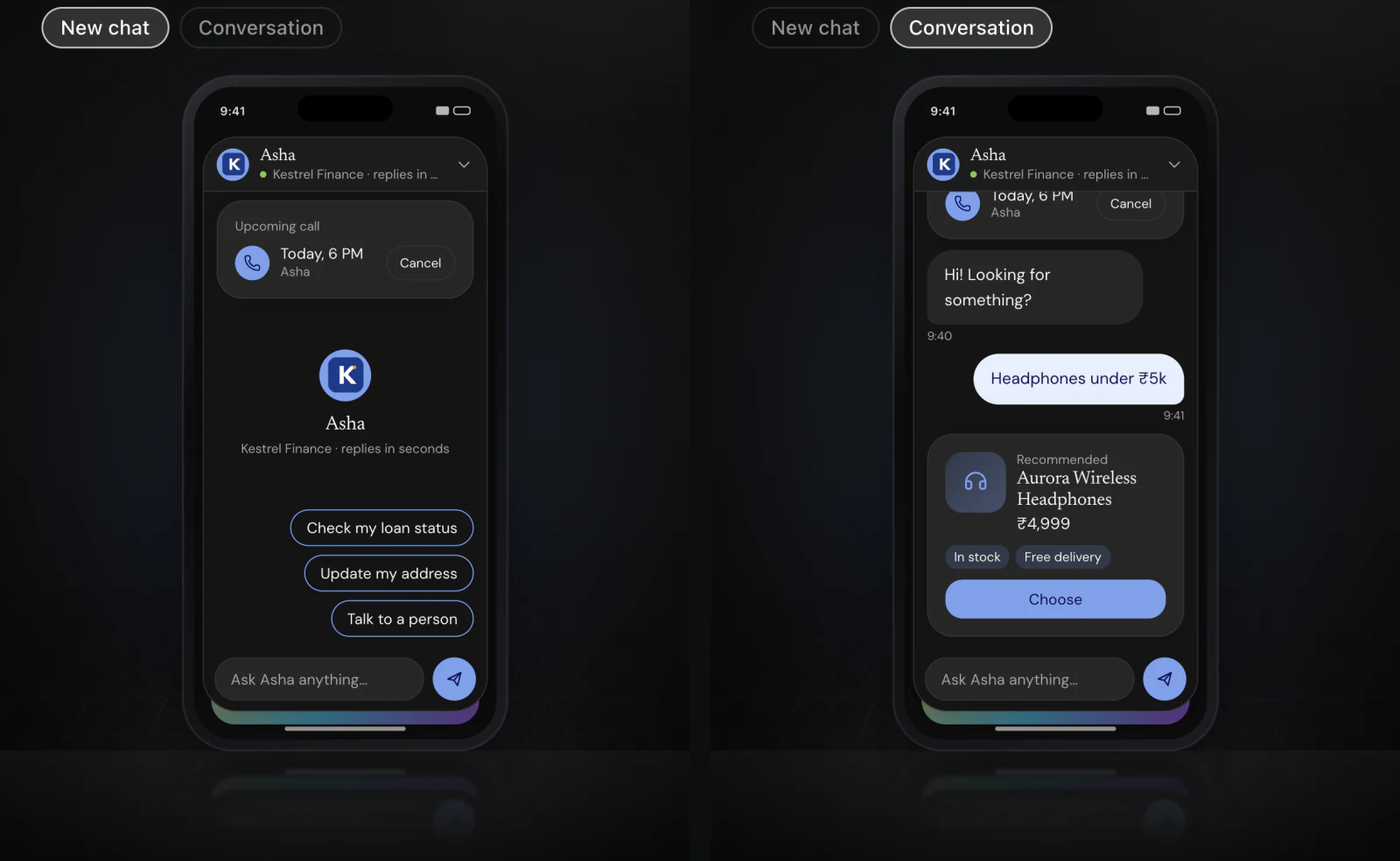
The booking sheet and the call screen draw from the same design. Every control: The Garage · Design in the Garage.
7. Actions, components and friction
On the same agent: Actions (what the agent may do in your app — declare each, then Save), On screen (the components it may draw), Friction (when it speaks up for a user who looks stuck). Then check the agent in the Playground:
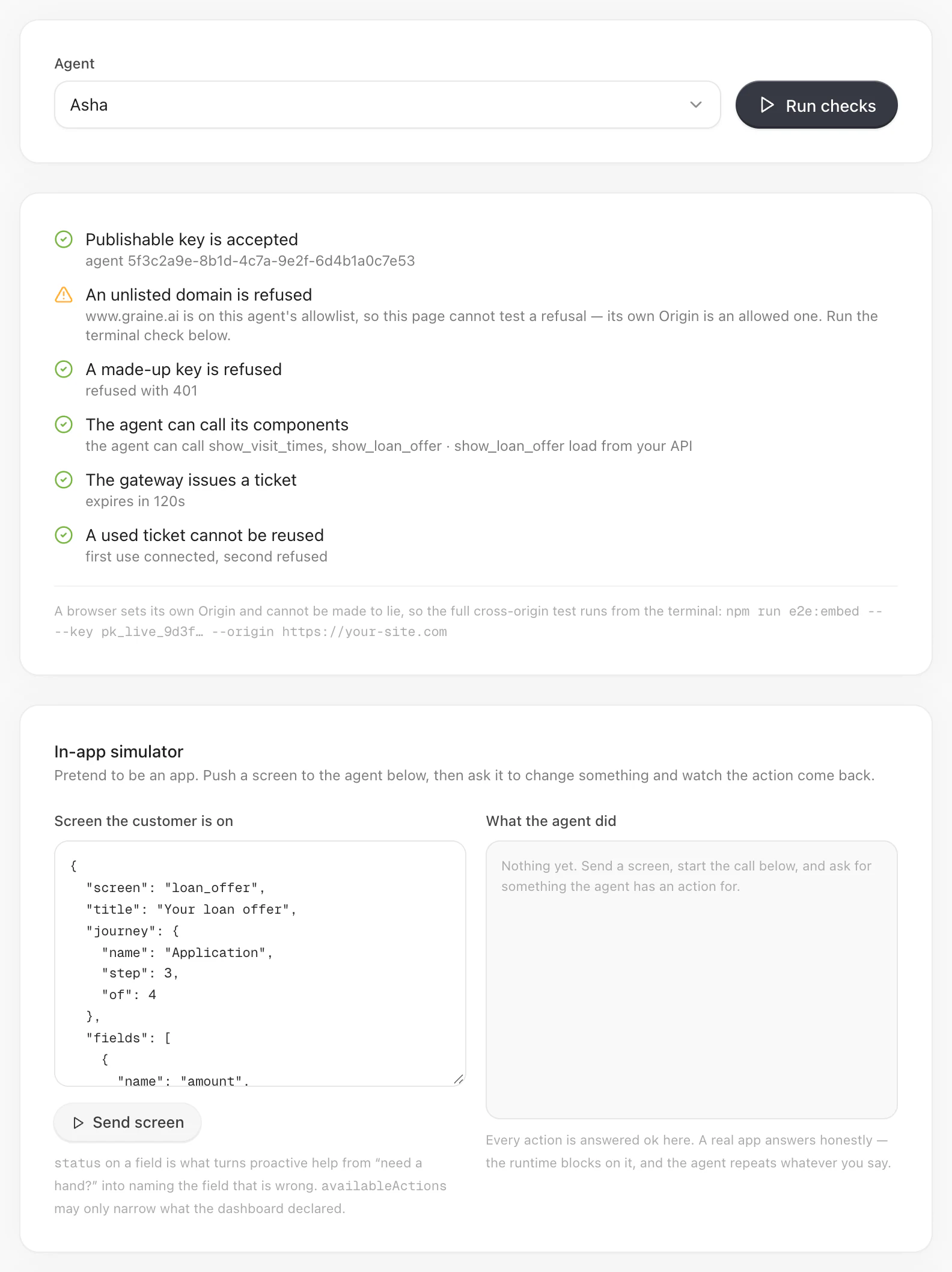
Screen context, actions and components · Playground.
8. The demo's agent packs
The demo apps in your integration pack come with ready-made agent packs: one folder per example use case, each with the prompt, the actions, the components and every setting above, for a main agent and a second, help agent. Follow agent-setup/SETUP.md in the demo to recreate them in about ten minutes — the quickest way to see every feature working with your own workspace before your app has any of it.
9. Test with the demo
RUN-THE-DEMO.md in the demo takes you from the two agents to every app running: put each agent's key in the demo apps, set your bundle ID and package name, and run the 10-minute script — chat, a call, a booking, and a ring on a locked phone.
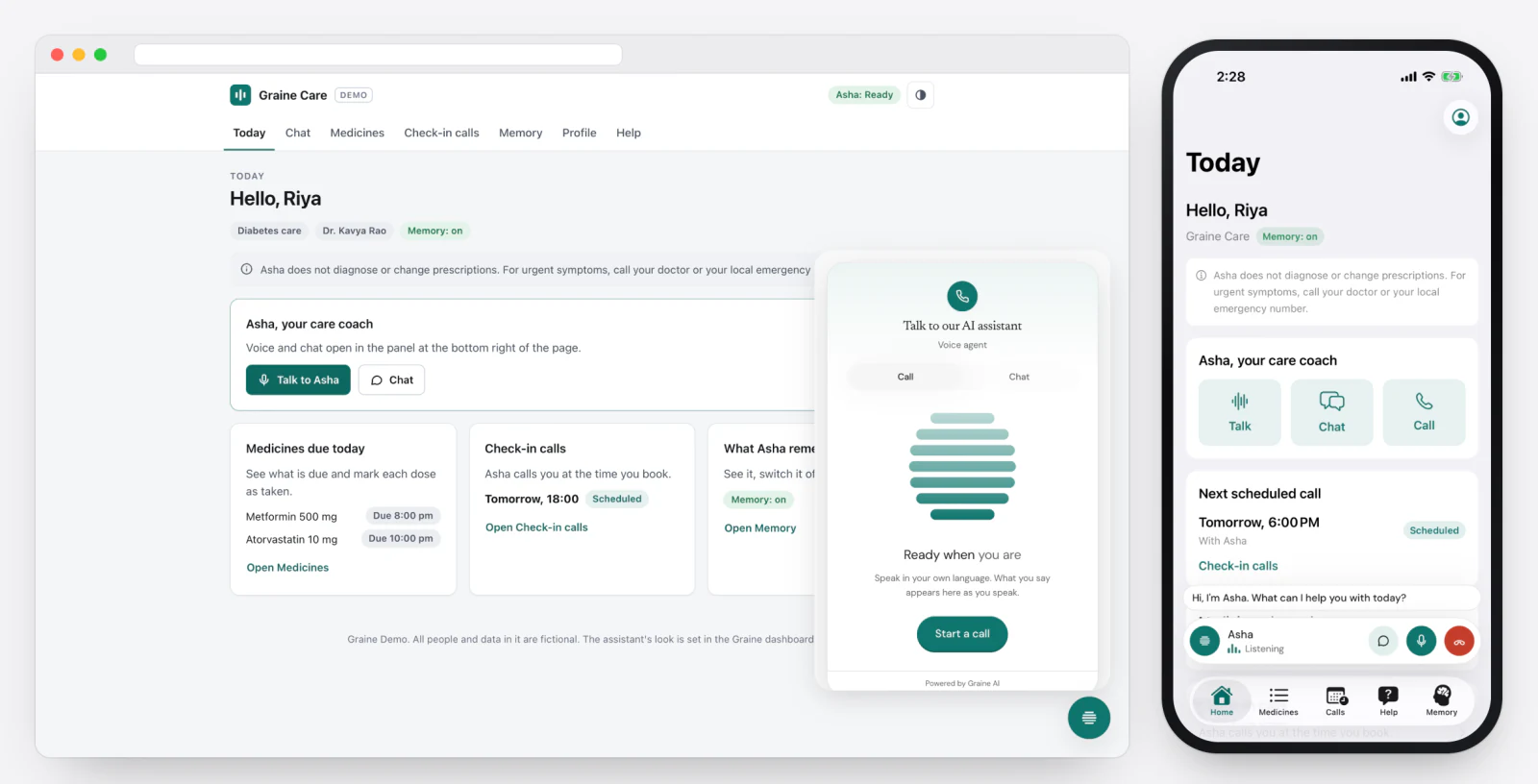
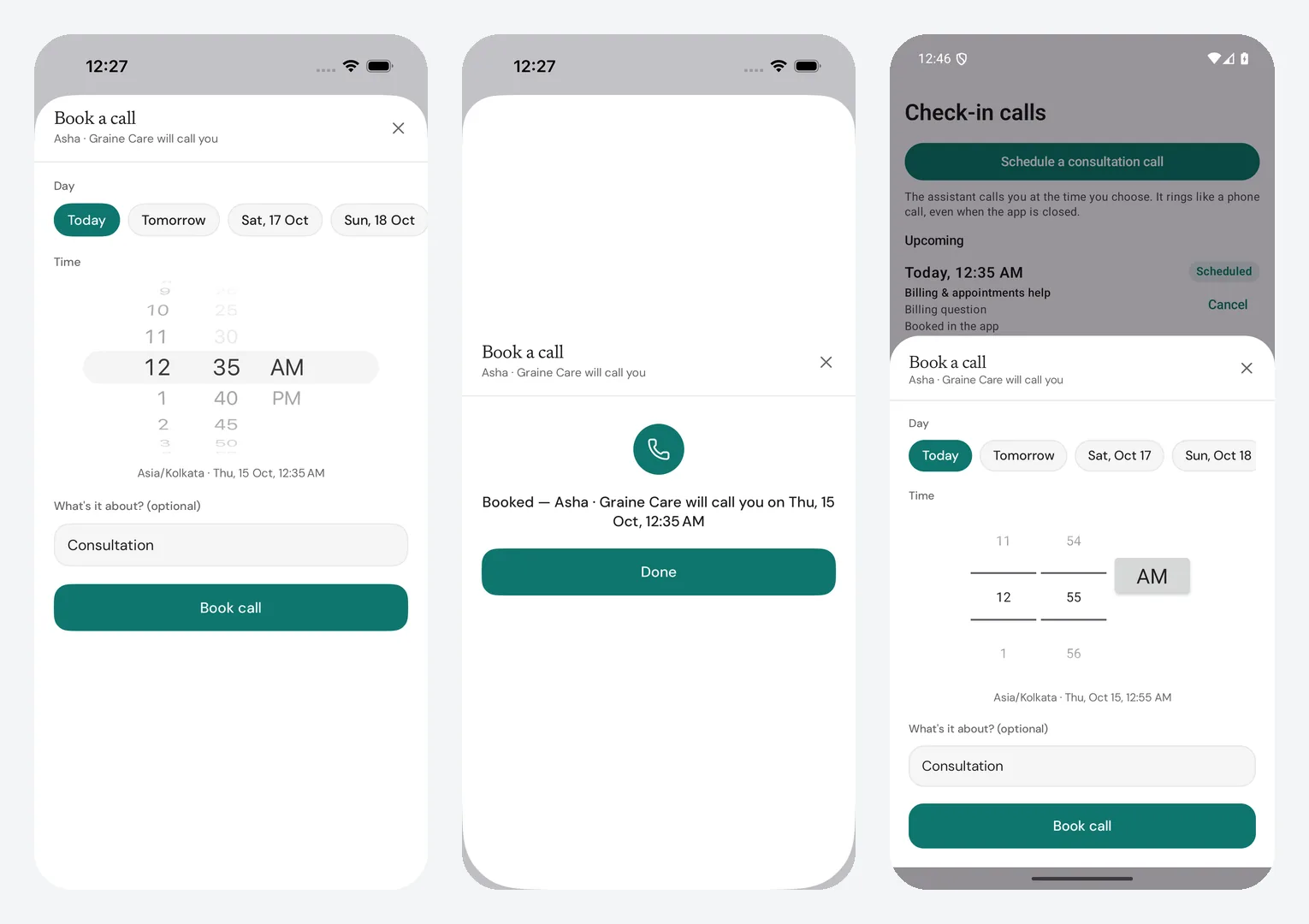
Then test your own app the same way — the guide's QA script.
10. Go live
The checklist: Going live — the dashboard, the release build, the store submissions and the test script on real phones.