
Playground
The dashboard page that proves an agent's embed works, including the parts you cannot see by looking — the key, the allowlist, components on the agent, single-use tickets — with an in-app simulator that sends a screen and answers actions like your app would.
A chat that answers normally proves the connection works, and nothing else. It says nothing about whether an unlisted website is refused, whether the agent can actually call its components, or whether a connection ticket can be used twice. The Playground checks those things directly, then lets you act as an app — send a screen, ask for something, watch the action come back — against the live agent.
Where: the sidebar's Deploy → Playground, or Test it end to end on an agent's Embed & Widgets → Install tab. Anyone whose role can place calls can open it — Admins and Members (Team roles).
How it works
Nothing on the page is simulated except your app: the checks and the live agent go through the same endpoints and the same agent your customers reach.
Run it
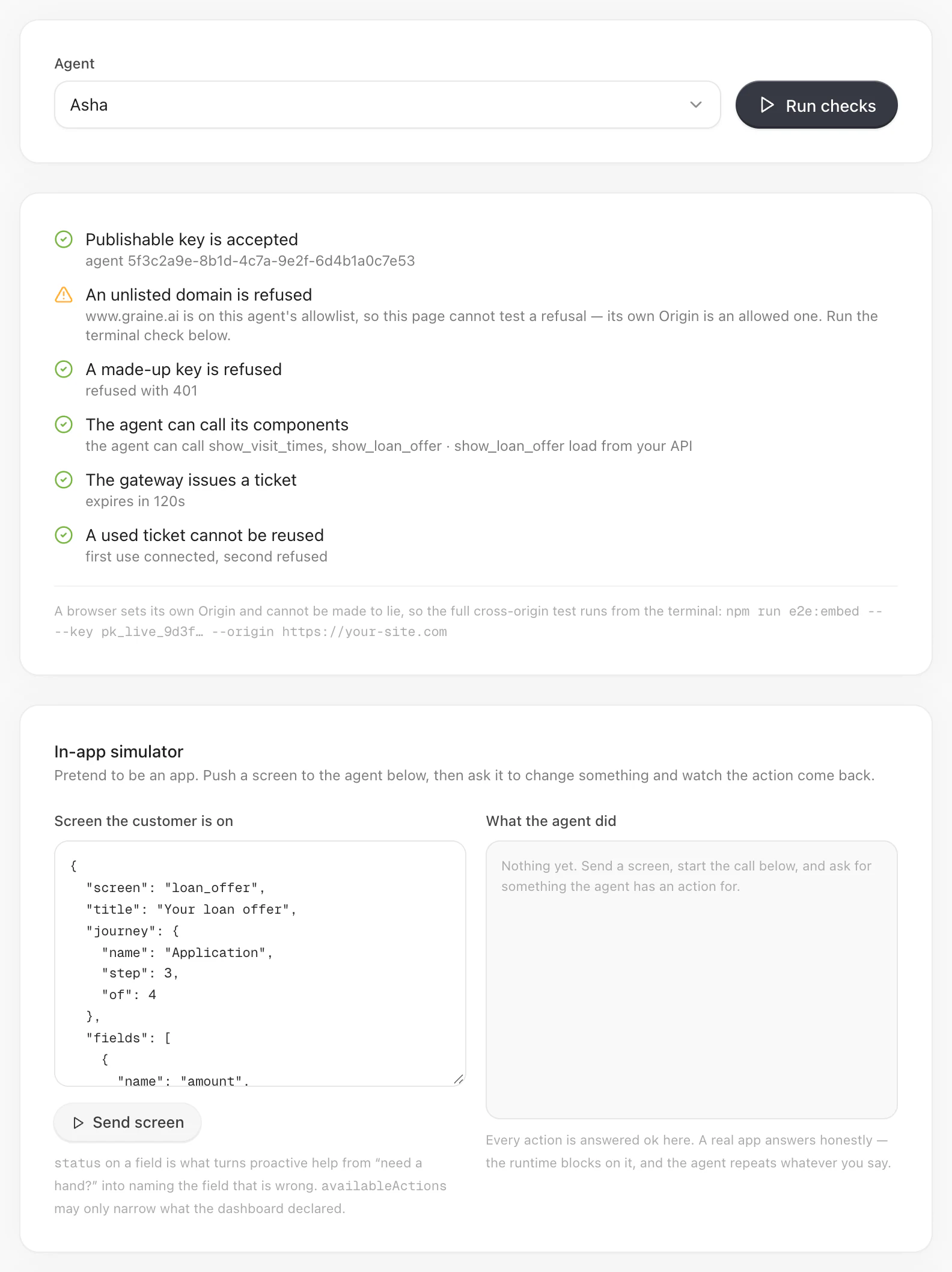
Choose the agent and press Run checks. The page reads the agent's publishable key and allowed domains for you. If it says Embedding is not set up for this agent yet, open the agent and use Set up embedding on Embed & Widgets first.
Let the dashboard in, once. The Playground runs on the dashboard's own address, which is on no agent's allowed domains — nobody lists their vendor's domain. When it is missing, the page says This page cannot open a session yet and offers Allow (the dashboard's address) for this agent. That needs a role that manages integrations (an Admin). It lets the dashboard open a session and widens nothing for your own site; remove it any time under the agent's Embed & Widgets.
Read the six checks. Each is a tick, a cross with the reason, or an amber skip when it cannot be tested from here.
Act as your app in the In-app simulator, against The live agent (below).
The checks
| Check | Passes when | When it does not |
|---|---|---|
| Publishable key is accepted | A session opens with the agent's key | Embedding is not set up for this agent, or the dashboard is not in its allowed domains (step 2) |
| An unlisted domain is refused | A request from an address the agent does not list is turned away | A cross is serious: any site on the internet could run this agent on your bill. An amber skip is normal once you have allowed the dashboard — a browser sets its own origin and cannot pretend to be another, so a refusal cannot be tested from an allowed one. To see one, put your snippet on a page whose domain is not listed: no launcher appears, and the browser console says why |
| A made-up key is refused | A key that belongs to no agent is rejected | Keys are not being checked |
| The agent can call its components | The agent's own configuration holds the components, by tool name, and names any that load from your API | There are two copies: your library and the agent's. In your library, none on the agent means the push never landed — open the agent → Embed & Widgets → On screen → Save selection. Not set up for the web yet means the agent has no web-call variant: open it, save it once, run again |
| Graine issues a connection ticket | A single-use connection ticket comes back, with how long it lives | A skip means this deployment does not issue tickets, and conversations connect without one |
| A used ticket cannot be reused | The first use connects and the second is refused | If the same ticket opens twice, a captured ticket would be a permanent key to your agent |
The checks prove the embed — the key, the allowlist, the agent's components,
tickets. They do not exercise your app: microphone permissions, app:// from a
real device, native calls. For those, Going live and
calling's test plan.
The in-app simulator
Screen context reaches an agent only when an app sends it — a browser on its own sends none, so the agent rightly answers "I can't see your screen". The simulator is the missing app.
- Edit the screen under Screen the customer is on — replace the sample
with one of your own screens. It starts with three fields, one of them
empty, in the same shape your app reports (Screen context); addavailableActionsto narrow what the agent may call, never to add to it. - Press Send screen. A typo is reported in the panel rather than sent.
- Start a conversation in The live agent, and ask for something one of
your declared actions does — "switch the app to Hindi", for a
set_languageaction. - Watch What the agent did. Each line is one direction:
▶ appfor what the simulator sent,◀ agentfor what the agent asked, with the arguments.
Every action is answered ok here, with a sentence saying it was done, because
the agent waits for an answer before it speaks. Your app must answer honestly:
the agent repeats what your handler says (Actions).
The live agent
The widget your customers get, opened on the agent with both the call and the chat. Speak or type; ask for a component by the name the page lists. Configure goes back to the agent.
The live agent here opens in the default look, with the call and the chat both offered, whatever the agent's Appearance says. To see your design, use the Garage's previews or your own app; to see exactly what visitors get, open a page running your snippet.