
Integrate in an afternoon
The in-app agent from nothing to a tested build in four hours, on React Native, iOS, Android or Flutter — the dashboard, the install, the microphone, the bar, who the customer is, what is on screen, one action, and the checks that prove each step.
By the end of this page your app has an agent that talks in your brand's design, knows who the customer is and which screen they are on, can change something in the app for them, and has passed the checks you would run before a release. Each hour stands on its own: stop after any of them and what you have works.
The platforms differ only in code. Every tab below does the same thing.
How it works
What you touch, in order. The dashboard work comes first because the app cannot connect without it.
First: the dashboard (15 minutes)
- An agent for the app. Open your website or phone agent → More → Clone this agent, and work on the clone: the app gets its own actions and prompt (why).
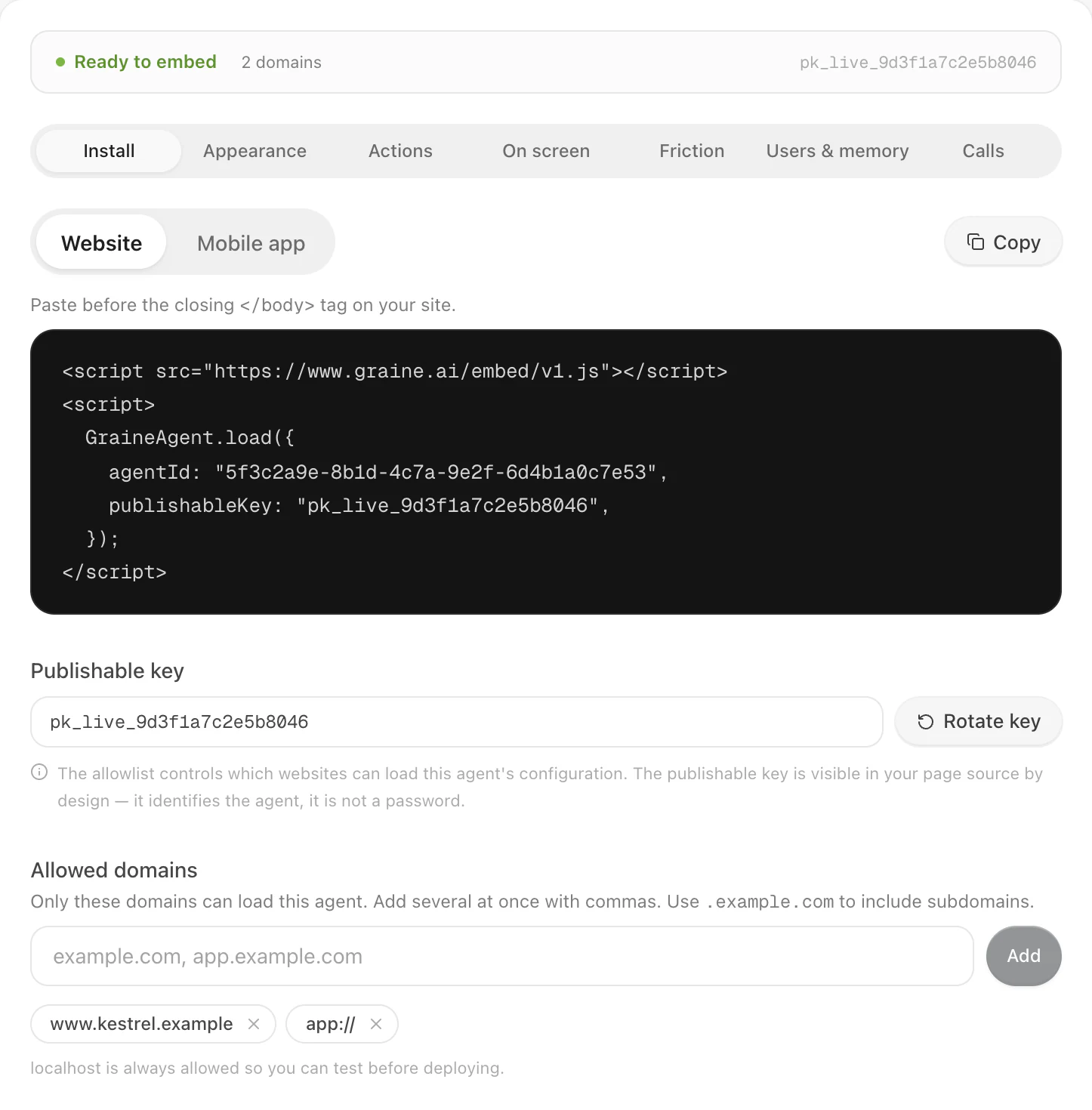
- A publishable key. On the clone, Embed & Widgets → Set up
embedding, then copy the
pk_live_…key from the Install tab. - Let apps in. On the same tab, add the literal entry
app://to Allowed domains. An app sends no web address; without this entry every session is refused and nothing appears. - A look (optional now). The Appearance tab: pick a design in the Garage and Save design, and under Setup choose What visitors get and Call audio.
Hour 1 — It talks
Declare the microphone — the package has no manifest of its own. With Expo, in
app.json; without, the same entries in AndroidManifest.xml and Info.plist:
With Expo, run it in a development build.
When it works: the agent appears in the design chosen in the dashboard; open it and it greets you. On Android the microphone prompt appears at that first open — on iOS, the first time the call listens — unless you asked during onboarding (Permissions).
| Nothing appears, or it never connects | Check |
|---|---|
No launcher; no_origin or 403 in the log | app:// is not in Allowed domains |
No launcher; 401 | The key: copy it again from Embed & Widgets → Install |
| Needs microphone, and no prompt ever showed | The microphone is not declared (React Native, Flutter), or it was refused before |
| Android: a granted call stays on Connecting… | onRequestPermissionsResult is not forwarded to the SDK |
| It talks, but plain — not your design | The SDK is older than React Native 0.38.0 / native 0.3.0, or (React Native) loadFont and svg are missing |
Hour 2 — It knows who and where
Report real values: card and account numbers, phone numbers, email addresses, and
PAN and Aadhaar numbers are masked on the phone before anything leaves it. Give every
field a status — it is what lets the agent name the field that is wrong.
When it works: ask "What screen am I on?" and it names the screen and its fields; ask "Why won't it take my postal code?" and it reads the error. The conversation shows up in Call History under the customer's name.
| It does not know | Check |
|---|---|
| The screen | React Native: navigationRef is not the same ref as NavigationContainer's, or the hook sits after an early return. Native: setScreen is not called on every change |
| Who the customer is | identify() ran after the conversation started — it applies to the next one |
Hour 3 — It acts and shows
In the dashboard: Embed & Widgets → Actions → What this agent may do in
your app → add set_language, with a description written for the model and a
language parameter whose enum lists the languages your app offers, then
Save and sync to agent.
In the app, a handler with exactly that name:
Handlers run on the main thread and answer within six seconds; say what actually happened — the agent repeats it.
A component: build one in Web components (the sidebar's Deploy group) —
a list of orders, open appointment times, plans to compare — tick it on the agent
under Embed & Widgets → On screen → Save selection, and mention it in the
prompt by what it does. The bar draws it in React Native, Android and Flutter; on
iOS, GraineWidgetView from hour 1 does.
When it works: "Switch the app to Hindi" changes the language in your app, and the agent says so; "Show me my recent orders" draws the component.
| It does not act | Check |
|---|---|
| "This app build does not implement it" | The action is declared but no handler has that exact name on the current screen |
| It never tries | The action is not declared, or was not saved — Save and sync to agent |
| No component | Not ticked under On screen, not mentioned in the prompt, or (iOS) no GraineWidgetView — the Playground checks whether the agent can call it |
Hour 4 — Prove it
On a real phone per platform:
- Place a test call, then open it in Call History → the call → Open full logs. Under What happened in the app: the transport, how long the connect took, the screen, and your action with its answer (Going live → Prove it works).
- Try what customers do: refuse the microphone, then allow it in Settings; turn the network off mid-call (it says Reconnecting… and comes back); call on mobile data; hang up from both sides; put the app in the background (the bar's call ends after two seconds).
- Run the dashboard's checks in the Playground: the key, the allowlist and the agent's components.
Then Going live is the list from here to production.
Calls like WhatsApp — ringing on the lock screen, going on with the screen off — are a separate engine with more setup: capabilities, pushes and a server or hosted ringing. Budget another afternoon: In-app calling.