

Quickstart
A working in-app voice agent in about fifteen minutes — install, wrap, tell it what is on screen, let it act.
Four steps. After the first one you have an agent that talks; each step after that makes it worth talking to.
Each step stands alone. Stop after any of them and what you have still works.
Before you start
Two things from the dashboard, both one-time:
- An agent for the app. Open your website agent → More → Clone this agent, and work on the clone. It carries the prompt and knowledge base across. (Why not share one?)
- A publishable key. Agent → Embed & Widgets → copy the
pk_live_…key, and addapp://to the allowlist on the same screen.
The publishable key is the only key that belongs in an app. It cannot read your data or place phone calls — see Privacy and security.
Step 1 — It talks
Declare the microphone — this package adds no manifest of its own:
Without Expo, add the same <uses-permission> lines to AndroidManifest.xml
and the same key to Info.plist. On Android the SDK asks for the microphone
when the call starts; on iOS the system asks the first time it is used.
Run the app. The launcher appears; tap it and the bar opens and the agent
greets you. On Android the SDK asks for the microphone at that tap, the first
time. Keep active tied to the customer opening the bar: a launcher that is
active from the start, with autoStart, places the call as soon as the engine
loads. How it looks — the design, the typeface, the colours, the heading and the logo —
comes from the dashboard, not from props, so a brand change reaches every app
without a release. loadFont and svg are there so the SDK can load the
design's typeface and draw its icons; the app never names a font or a colour.
See Your design.
navigationRef must be the same ref you give NavigationContainer, and
GraineProvider must wrap it. Without that the SDK cannot see route changes
and the agent has no idea which screen anyone is on.
Step 2 — It can see
The route gives the agent a screen name. One hook gives it the contents.
Write it inline — the hook compares by value, so an unchanged screen is never resent. Put it below the state it reads and above any early return.
Ask the agent "what am I looking at?" — it will tell you, field by field.
status is what makes it proactive. The SDK runs a 45-second timer per
screen; when it fires, the agent names the field that is invalid or empty
— "the postal code isn't being accepted" — instead of "need a hand?". Report real
values: masking runs on the way out, so a screen that pre-redacts only blinds
the agent. Screen context
Step 3 — It can act
Two halves, and both are required.
In your app, a handler:
In the dashboard, the declaration: Agent → Embed & Widgets → Actions → What this agent may do in your app, then Save and sync to agent. The name must match exactly; saving pushes it to the agent immediately.
Neither half works alone. A handler with no declaration is dead code; a declaration with no handler is worse — the agent promises it and then says "this app build does not implement it". Actions
Step 4 — It can show
Reading three cars and their prices out loud loses the customer at the second one. A component puts them on screen and hands your agent back a structured answer.
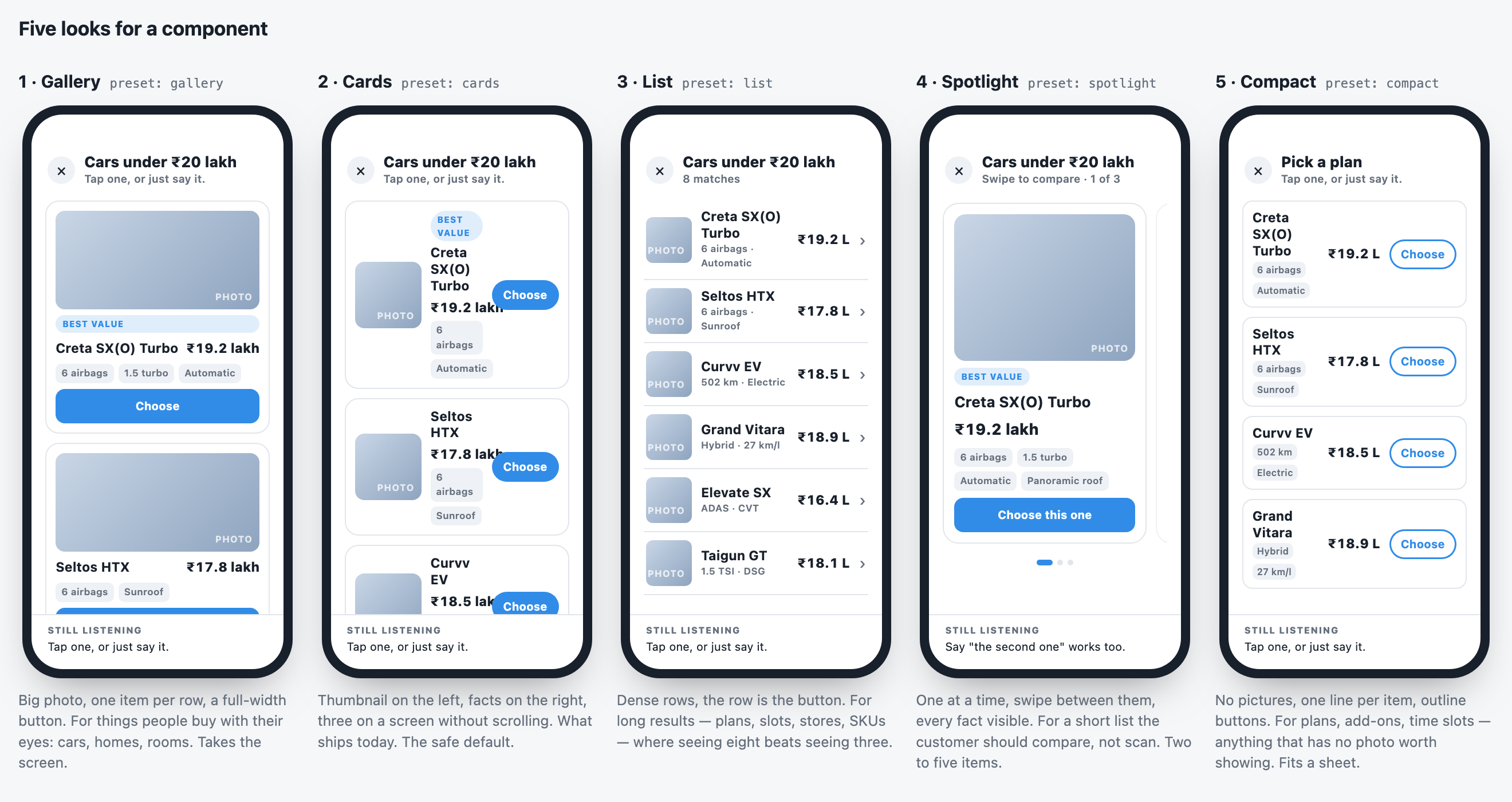
Build it once in Web components, switch it on for this agent under Embed & Widgets → On screen, and name it in the prompt. Nothing to write in the app — the SDK draws it.
Check it works
| Ask the agent | What proves it |
|---|---|
| "What screen am I on?" | Step 2 — it names the screen and its fields |
| "Why won't it take my postal code?" | Step 2 — it reads status and error |
| "Switch the app to Hindi" | Step 3 — the language changes in your app |
| "Show me the cars" | Step 4 — the component draws on screen |
If one of these fails, the page for that step has a troubleshooting section that names the usual cause.
Next steps
When it works on your phone, Going live is the checklist from here to production.