
Chat: the window, its sizes and the Garage's controls
Open the SDK's chat window at the size you want — compact, large or full screen — or place it yourself, send for the user, hear the agent speak up first, draw your own chat from the turns, and set every piece the window shows in the Garage.
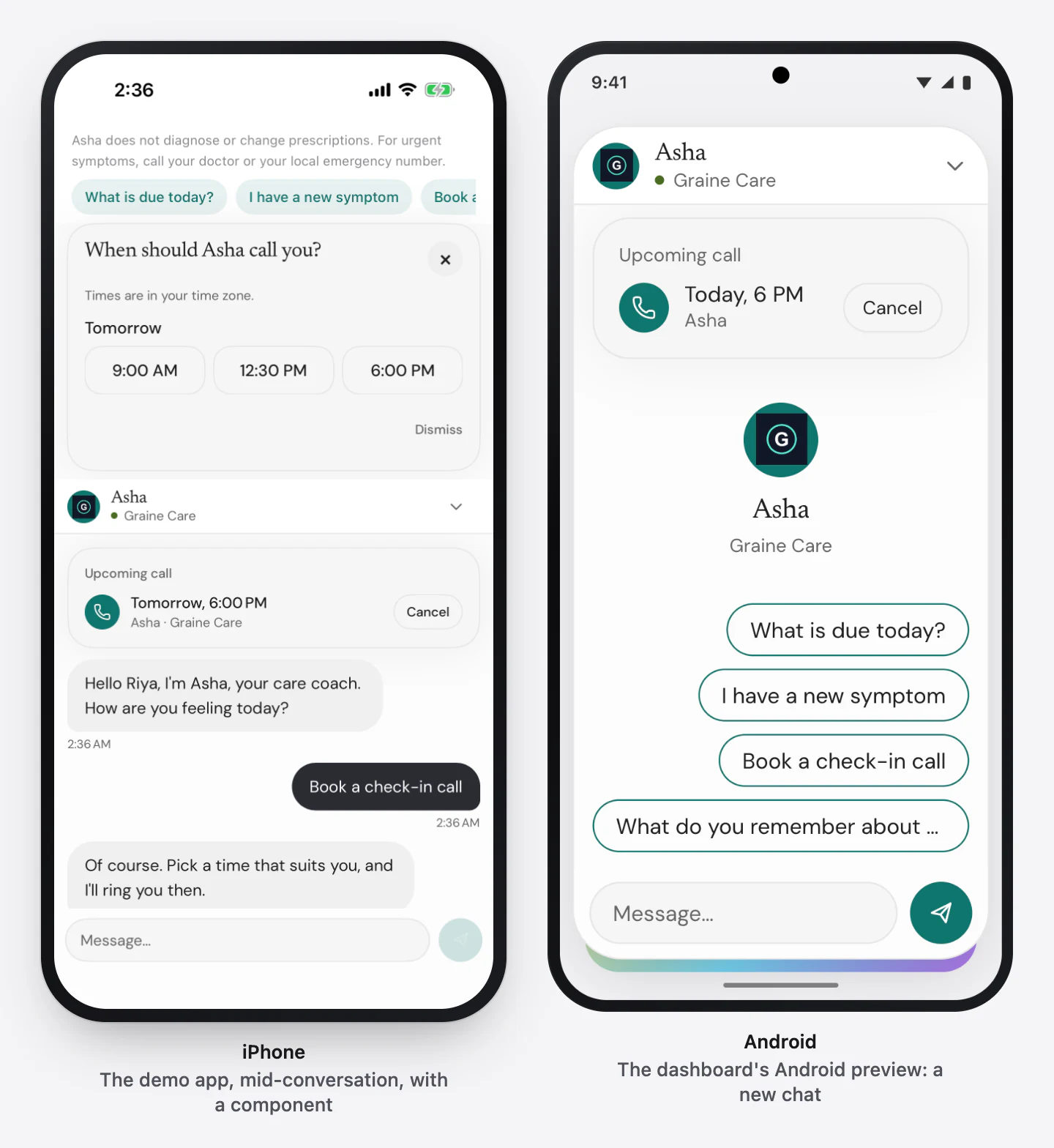
The agent typed, in your design: bubbles, the components it draws, the user's booked calls, the earlier conversation and New conversation. The bar carries the chat already where the agent offers it; this page is for opening it at a size, placing it on a screen of your own, and drawing your own.
What it needs in the dashboard
| Where | Setting | Value |
|---|---|---|
| Agent → Embed & Widgets → Appearance → Setup | What visitors get | Chat, or Call and chat for both with a switch |
| Embed & Widgets → Appearance → the Garage → Chat tab | Window size | Compact (the window above the bar), Large (a sheet over most of a phone) or Full screen |
| The Garage → Chat tab | Title and subtitle, Avatar, Header, Background, Starters, Composer → Placeholder, Timestamps | What the window says and how it looks |
| The Garage → Chat tab | Booked calls, Earlier messages, New conversation button | Which pieces it draws |
Every control, with what it changes: The Garage → The chat window.
What to do, in order
- Configure the SDK (install) and, for a chat that continues, identify the user.
- Open the chat — from the bar's switch, from your own button at a size, or as a screen of your own. → It connects, shows the earlier messages for a returning user, else the welcome and your starters.
- Send for the user if a button of yours should start the conversation. → The message shows at once; typed offline, it waits and goes when the chat reconnects.
- Hear the agent speak up first — badge or open your chat when it does.
- Draw your own chat from the turns, if the SDK's window does not fit.
- Close it when the user leaves the screen: the chat hangs up; what was said stays.
The size, in order of precedence: the open call's own argument, then your
config's chatSize, then the Garage's Window size.
The code, platform by platform
2. Open it — with the bar on screen, from any button, at a size for this open:
→ The bar moves to the chat and draws it as a sheet. Or place the chat yourself:
UIKit: present GraineChatViewController().
3. Send for the user: GraineInApp.shared.chat.send("Where is my order?").
4. The agent spoke up first:
5. Your own chat — GraineChat is an ObservableObject:
→ turns (oldest first; restored for earlier messages, channel .voice for
lines said on a call), status, typing, upcomingCalls.
6. Close it: GraineInApp.shared.chat.close().
Troubleshooting
| What you see | Why | Fix |
|---|---|---|
chat.open() does nothing visible | No bar on screen: open connects and moves a mounted bar to the chat | Mount the bar, or show the chat view (GraineChatView, GraineChatActivity, GraineChat, GraineChatScreen) |
| The window is compact whatever the Garage says | A chatSize in your config or the open call wins | Remove the override |
| Offline after a drop | Six retries failed (1, 2, 4, 8, 15, 15 s) | The next message, or retry(), tries again |
| No Book a call in the chat | Booking is not available for this user, or Booked calls is hidden | Booking with the SDK's sheet |
In depth: Chat · the chat object on each platform: SDK reference → Chat.