
Outreach workflows
Decide what happens to each contact across calls, waits and your own systems. What an outreach workflow is, when to use one, how its parts fit together, and a first workflow in five minutes.
An outreach workflow decides what happens to one contact, from the first
call to an outcome you can count — a phone contact, or a person signed in to
your app. Call them with one of your agents, act on how
the call went, wait, try again, tell your CRM, wait for your CRM to answer, and
end with a label such as qualified or unreached. You draw it once in the
dashboard, publish it, and run it for one contact or for a whole list.
Each contact's way through the workflow is a run. A run moves step by step, on its own clock: a retry two hours later, a reminder on Friday at 10:00, or a wait of up to 30 days for your system to say a deal was won. Every step it takes is recorded, so you can see exactly where each contact is and why.
When to use one
| You want to… | Use |
|---|---|
| Shape what the agent says within one call (the order, fixed wording, decisions mid-call) | A flow agent |
| Call a list once, with retries and follow-ups | A campaign |
| Decide what happens to a contact across calls, days and your own systems | An outreach workflow |
They work together: a workflow's Call step can use any of your agents, prompt or flow, and every call it places is an ordinary call. It appears in Call History, is billed like any other, and sends your webhooks.
The parts
| Part | What it is |
|---|---|
| Step | One thing that happens to the contact: a call, a wait, an HTTP request, a WhatsApp message, an SMS, an email, an automation. Every kind is in Steps. |
| Path | Leads from a step to the next one. Each has a rule, such as "the call was answered", and the first that holds is taken. One more, Otherwise, is taken when none holds. See Paths and data. |
| Version | A frozen copy of the workflow, made when you publish. A run always follows the version it started on, so editing the workflow never changes a run already under way. |
| Run | One contact's way through one version: where it is, what it is waiting for, and every step it took. |
| List | One version run for many contacts. Contacts start as fast as your lines allow, and you can pause or cancel the whole list. See Running a workflow. |
Your first workflow
-
In the dashboard, open Workflows → Outreach and choose New workflow.
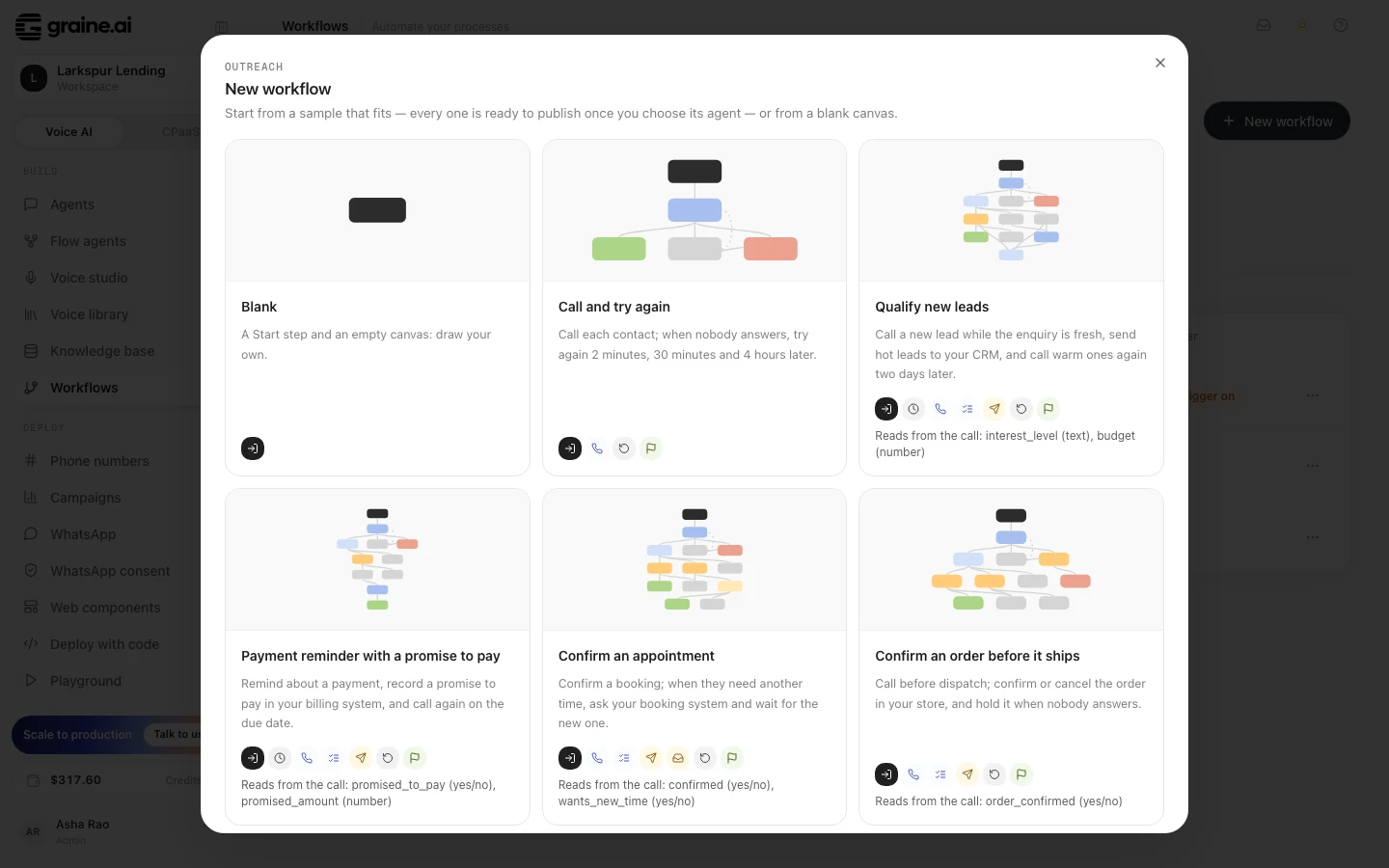
Start from the Call and try again sample: a call, three more tries when nobody answers, and an end. There are eleven samples to start from.
-
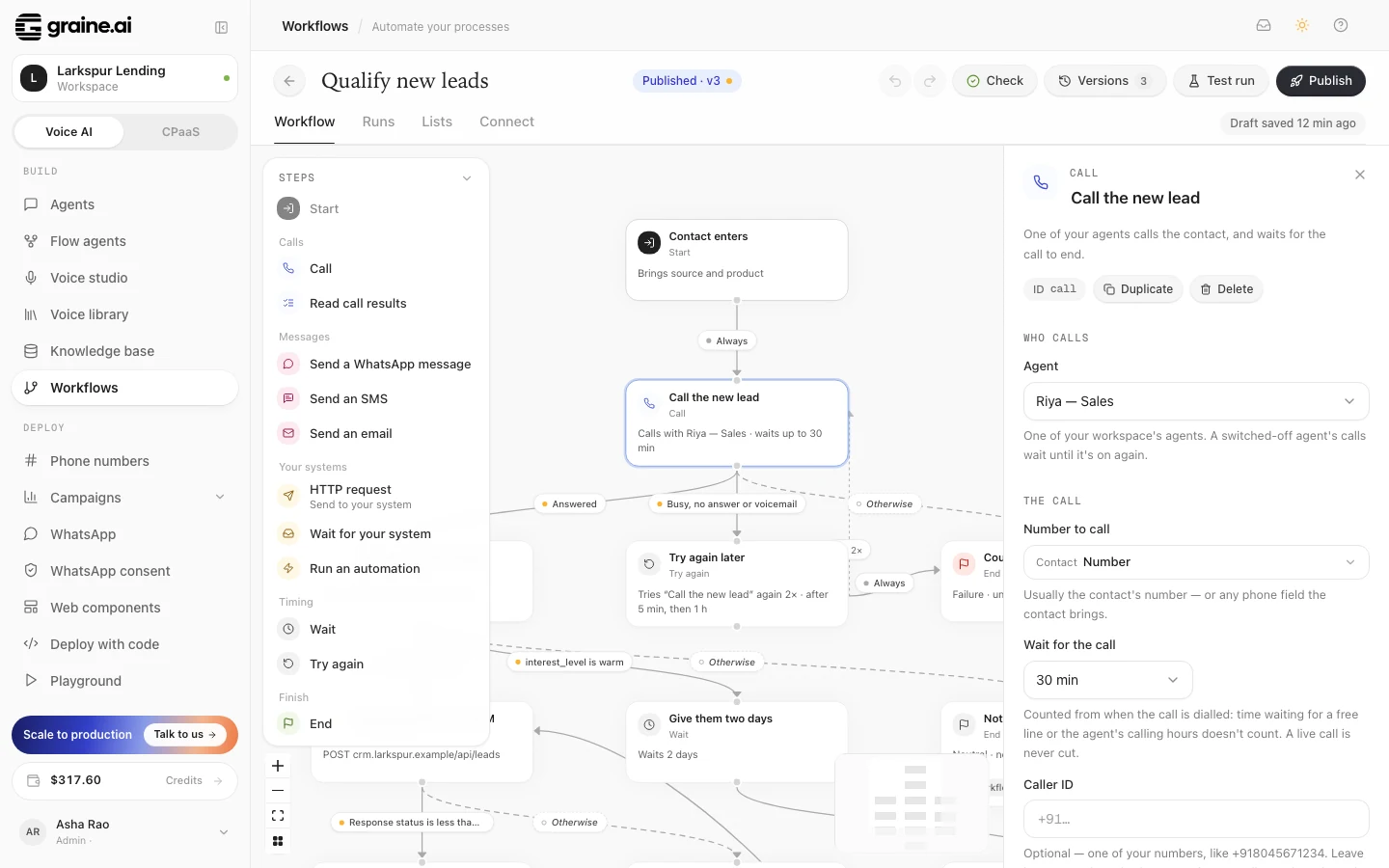
Click the Call step and pick the agent that should place the calls. The editor has four tabs: Workflow (the canvas), Runs, Lists and Connect.
-
Choose Check. It lists anything to fix, pinned to the step it is about.
-
Choose Publish. That makes version 1.
-
Open Test run, enter a phone number you can answer, and run it. The panel follows the run live: the call being placed, how it ended, the path it took and how it finished.
Everything a call meets, a workflow's call meets
A call from a workflow goes through the same checks as every other call: your credit balance, the agent being switched on, the agent's calling hours, your free lines and your carrier's pace. When one of them holds a call back, the run waits for it. That is never counted as an attempt, and the call's timeout only starts once it is actually dialled.
People of your app
A workflow can reach the people your app signs in as well as phone contacts. A
Call step set to In their app rings them in your app, now or at a time
it books (In their app), and a
workflow can start by itself when a call in your app, a call on your website or
a chat ends (Start when a call ends).
Such a person is their ID in your app (entry.user_id), the one the agent knows
them by.
| Step | For a person of your app |
|---|---|
| Call, in their app | Rings them now, or books the call for a time |
| Read call results | Reads the call's analysis — or the chat's, for a chat that started the run |
| Check call history, in their app | Counts the calls that rang them in your app lately, by any of your agents |
| Wait, Try again, End | As for anyone |
| HTTP request, Wait for your system, Run an automation | As for anyone: send your system their ID |
| Send a WhatsApp message, an SMS or an email | When the run has their number or email address, from your system or the contact |
| Call, by phone | When the run has their number |
Your app can also start a workflow for the user it signed in, with the SDK (Start from your app, requires SDK 0.14.4).
Next
Sample workflows
Eleven ready-made workflows to start from: leads, reminders, confirmations, feedback, your CRM, people of your app.
Steps
The eight kinds of step and their settings.
Paths and data
Rules, Otherwise, saved values and what each step can read.
Running a workflow
Publish, test, run one contact or a list, and follow every run.
Connect your systems
Send to your CRM, wait for its answer, and start runs from your system.
Workflows API
Build, publish and run workflows with an API key.