

Secure your workspace
The Security page — every agent's protection in one place, the Security log of every check, the sub-accounts you can open, two-step verification, the access review, API keys, the activity log with proof, security notices — and how to close the gaps it shows.
Security, under Account in the sidebar, shows in one place how each of your agents is protected and what in the workspace itself to look after. It is for Admins: anyone else sees that the page needs an Admin.
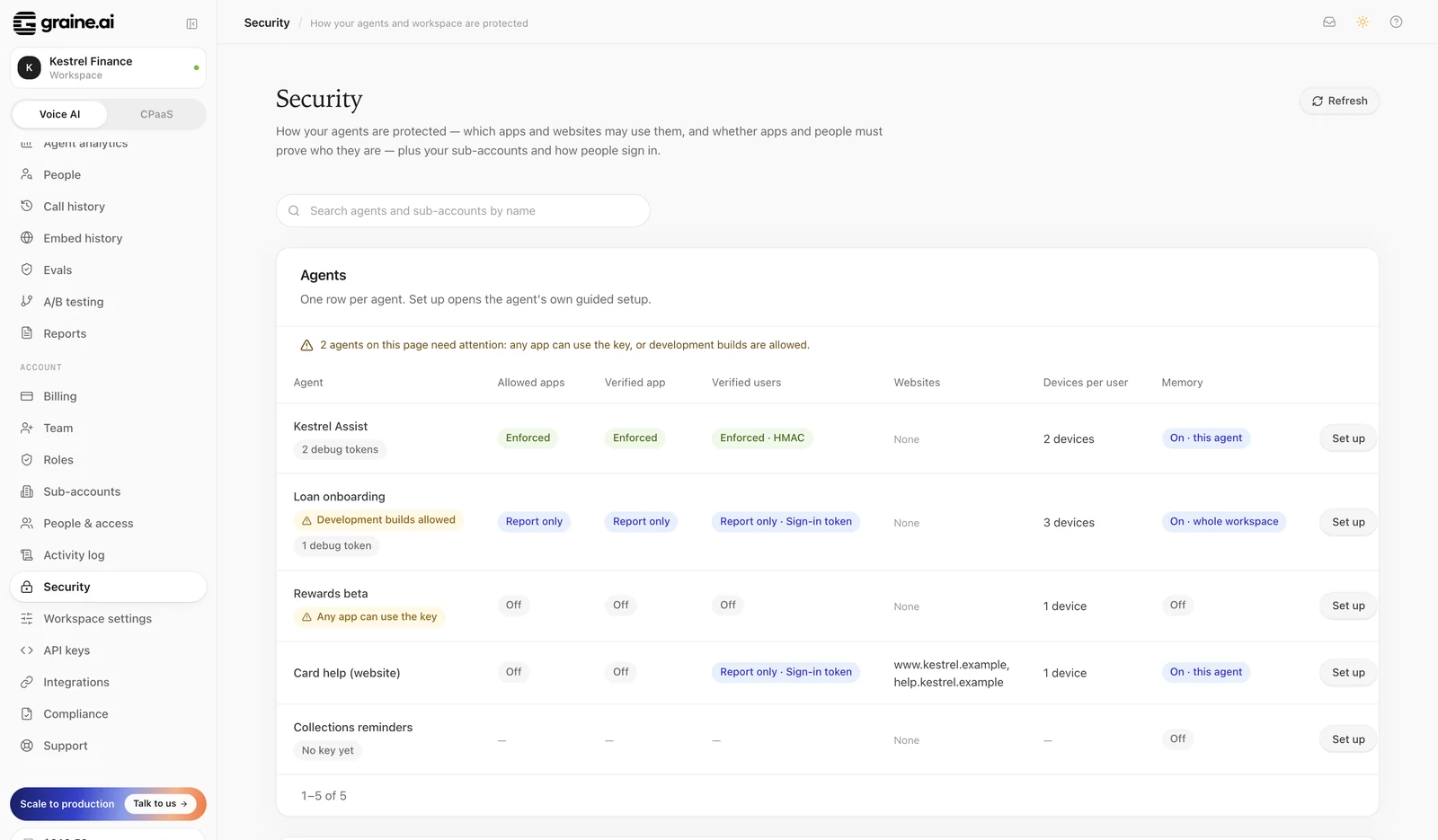
Agents
One row per agent, twenty at a time — search by name to find one, and page through the rest. Each row shows:
| Column | What it says |
|---|---|
| Allowed apps | Off (any app with the key, when the agent allows apps at all), Report only (apps listed and counted, nothing refused) or Enforced (only your apps) |
| Verified app | Off, Report only or Enforced — whether app requests must carry an App Attest or Play Integrity proof |
| Verified users | Off, Report only or Enforced, with the method: a signed user ID or your own sign-in |
| Websites | The websites on the agent's Allowed domains |
| Devices per user | How many installs may act as one person at once |
| Memory | On or off, and whether it is kept per agent or across the workspace |
A row warns when any app may use the agent's key (the agent accepts apps and lists none) or when development builds are allowed. Set up opens that agent's guided setup — see Secure your agent for each step.
Security log
Security has a second tab, Security log: every check each of your agents makes — Only my apps, Verified app, Verified user, Server token, Bot check, Key and Allowed domains — with its result and why, and every change to the agents' security settings, with the member who made it and their role. Filter by agent, time, check, result and app ID, a page at a time (25, 50 or 100 rows), and download as CSV; the filters stay in the page's address, so you can share a view. The Overview tab shows the five latest rows. Rows are kept for a year. What each row shows, how rows are grouped, and what is never logged: Security log.
Sub-accounts
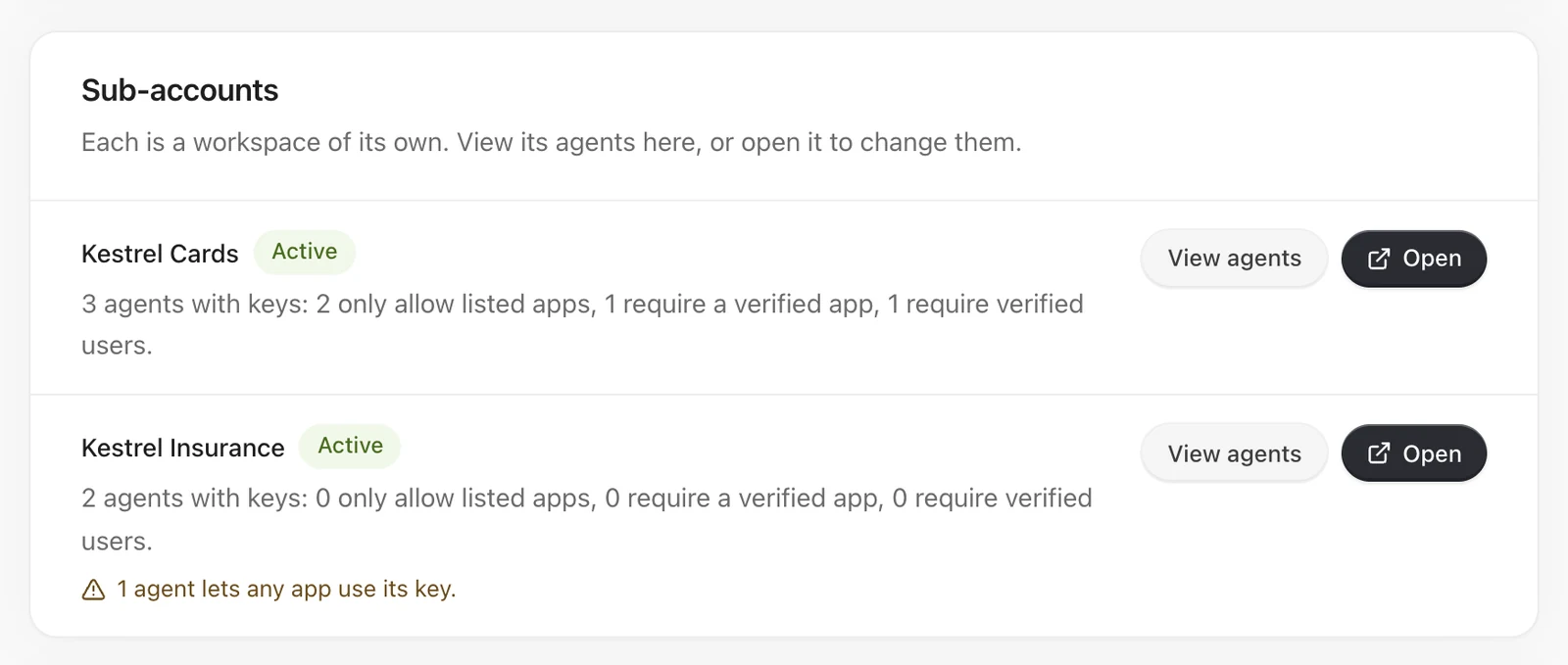
At a parent workspace, the page also lists the sub-accounts you can open — searchable, twenty at a time — with a summary of each: how many of its agents have a key, and how many enforce Only my apps, Require a verified app and Require verified users. View agents lists that sub-account's agents; Open switches into it, where its own Security page and each agent's setup are. Each sub-account sets up its own agents; a parent's Admins with access to a sub-account set it up from inside it, as for any other of its settings. A sub-account's own Admins see only their own workspace.
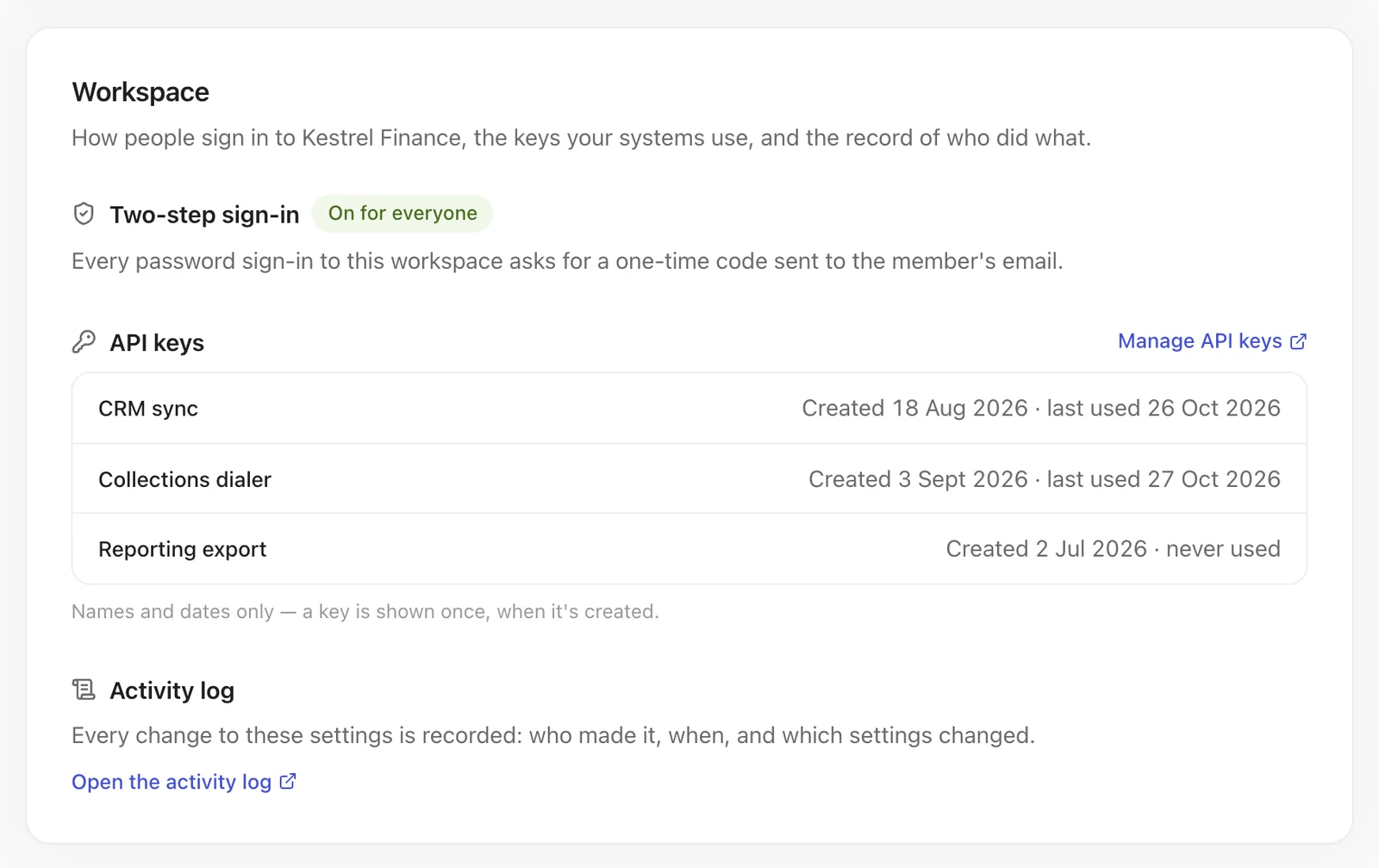
Workspace
- Two-step sign-in. Every password sign-in to your workspace asks for a one-time code sent to the member's email, so it is on for everyone. For a code from an authenticator app as well, see Two-step verification.
- API keys. Each key's name, when it was created and when it was last used — never the key. Revoke a key you no longer use on the API keys page; rotate one that may have leaked.
- Activity log. Every change your team makes, including each security change — never the values or credentials themselves. Open it from the page.
Sign-in and access
Below Workspace, Sign-in and access holds the controls an auditor asks about.
Two-step verification with an authenticator app
- Your own. Set up two-step verification shows a QR code (and the key, to type in by hand) for an authenticator app, and ten recovery codes. Keep the recovery codes somewhere safe: each works once if you lose your phone, and they are not shown again. Enter a code from the app to turn it on. From then on, every sign-in asks for a code from the app after your password and emailed code. Turning it on never signs you out of the browser you are using. New recovery codes and Turn off each ask for a current code.
- For everyone. An Admin can Require it for everyone. It applies at each person's next sign-in — nobody is signed out — and anyone without an app sets one up then. While it is required, nobody can turn their own off.
- A lost phone. Sign in with a recovery code, or ask an Admin to reset your two-step verification from Team; you set up a new app at your next sign-in.
- What it doesn't change. API keys never take a second step. Team shows whether each person has it on.
Access review
Download everyone with access and every API key as CSV or JSON: each person's role (or custom role and its permissions), the agents they are limited to, sub-account access, two-step verification, last sign-in and who invited them; each key's name, its first characters and last four (never the key), who created it, when, when it was last used and when it expires. Keys whose creator has left, or is no longer an Admin, are flagged. Review it every 90 days. Remove anyone who should no longer have access from Team first, then Record review: no change for everyone — it is recorded as exactly that, with who recorded it and when. The page shows when the last review was recorded and when the next is due, and your Admins get a reminder in their inbox when it is.
Removing someone
Removing a member from Team ends every session of theirs in this workspace, revokes the API keys they created and disconnects the apps they connected, and tells your other Admins in their inbox.
Activity log with proof
Activity log with proof downloads the last 30 days of the activity log as JSON Lines, every entry with its place in the log's hash chain, and a last line that says whether the chain checked out. The same export, for any range up to 400 days and also as CSV, is available to Admins through the API. If Graine support ever opens your workspace, the activity log says so — "Graine support accessed your workspace", once per person every 15 minutes — and lists the requests themselves.
Security notices
If Graine ever has a security notice for your workspace, it appears here and is emailed to your Admins: what happened, what was affected, when, what it may mean for you, what was done, what you can do, and whom to contact.
Sign out of all my devices
Sign out everywhere ends every session of yours in this workspace — other browsers, other devices, and this one. Graine never signs anyone out on its own.
Closing the gaps
- An agent any app may use. Open its setup, add your apps under Your apps, watch What we've seen, then turn on Only my apps. Every agent your app ships a key for needs it: each agent needs its own lock.
- Users who are not proven. Add a signed user ID or your sign-in under Prove who the user is, run it report-only, then turn on Require verified users.
- Development builds allowed. Turn them off before a release; register debug tokens for the devices that still need to test, and revoke the ones nobody uses.
- An agent that also runs on websites. Requiring a verified app protects app traffic; for full protection give your app an agent of its own.
Turning any switch off takes effect within 30 seconds. If something is refused that should not be, turn it off, read the reason in What we've seen, fix it, and turn it on again — see If something is refused.