
Save and publish
Save a flow, undo anything, move flows between agents as JSON, go back to an earlier saved version, put the agent live and see how changes to a live flow are approved, and put it on your website or in your app.
Everything on this page happens from the flow builder's header. Trying a flow and fixing what Check finds are on Test and fix a flow.
Save
Save (⌘S on a Mac, Ctrl+S elsewhere) checks the flow with the builder's own rules, asks the server to check it too, and then saves only what changed. When something stops the save, nothing is saved and the problems are listed in the Flow area. When it succeeds, the next call uses the new version.
- Discard goes back to what is saved; Undo brings your changes back.
- Leaving the page with unsaved changes asks first, whether you close the tab or open another page of the dashboard.
- The header says Unsaved changes or All changes saved, and hovering over Save says when the flow was last saved.
- With a View only role you can look through every part of a flow, but not save.
Undo and redo
| Action | Mac | Windows and Linux |
|---|---|---|
| Undo | ⌘Z | Ctrl+Z |
| Redo | ⇧⌘Z | Ctrl+Shift+Z or Ctrl+Y |
| Let go of the selected step or path | Esc | Esc |
One history covers the whole builder: the canvas, the step and path panels, Settings and Tools. Typing into one box comes back out in a single undo, not a letter at a time; a pause, another box or any other change starts a new one. The builder remembers the last 100 changes.
Undo takes back anything, including a deleted step, an import, a restored version, text applied in Settings › Advanced, and Discard. The history stays after a save (undoing past it makes those changes unsaved again) and starts fresh when you reload the page. Inside a text box, the box's own undo works on what you typed there.
Import and export
Import / Export in the header moves a flow between agents, or between workspaces, as JSON.
- Download JSON saves the flow and its settings, as they are on screen, unsaved changes included, to a file named after the agent.
- Copy JSON puts the same JSON on your clipboard.
- Import JSON… reads a file (up to 2 MB) or pasted JSON and replaces the flow in your draft.
An export carries the flow and where its steps sit, the agent's name and welcome message, its reply model, voice and speech recognition, its call settings and its languages. Tools are left out on purpose, because a tool's request carries your endpoint's credentials.
An import can be a full export or a bare flow (the JSON that Raw flow shows). Before anything is applied it must parse, look like a flow, and pass the same checks as any edit: the dialog lists what it found, and a problem that stops a save stops the import too. Tick Also use the file's welcome message, reply model and call settings to bring those across as well. Voices, languages, the knowledge base and tools always stay the agent's own.
An import is a change to your draft like any other: Save keeps it and Undo takes it back.
Saved versions
Every save that changes the flow, the layout of its steps or the welcome message keeps a version, newest first, up to the last 50. A save that changes only something else, such as the reply model, the voice, the name or the status, doesn't add one. Moving steps on the canvas is kept under the agent's current version number rather than making a new version.
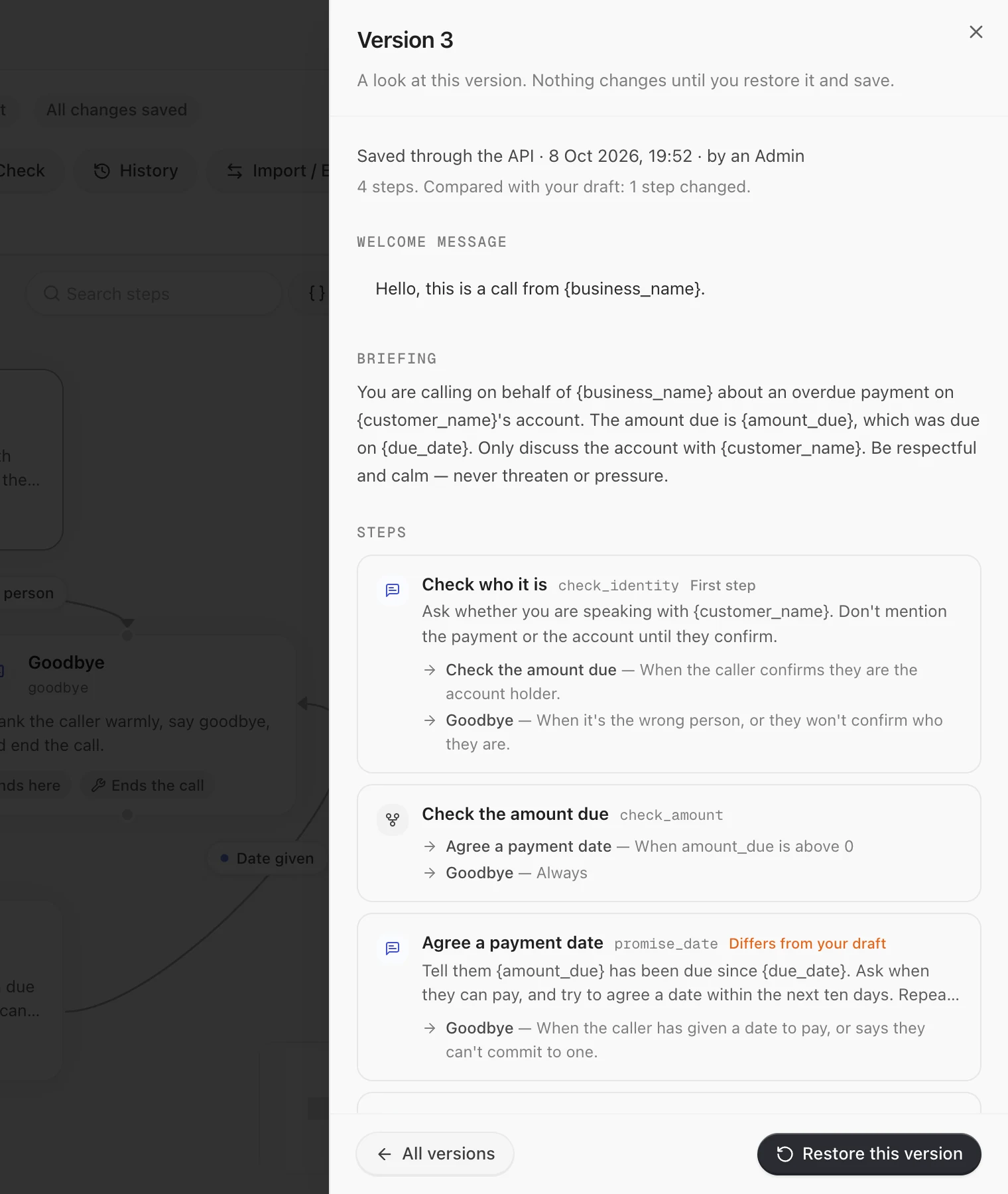
History in the header opens Saved versions. Each version shows its number, how it was saved (Created, Saved in the editor, Saved through the API or Approved change), when, who saved it and their role, how many steps it had and its first step. A change saved with an Admin's API key, or with a key made before roles existed, shows only the role.
Open a version to look through it without changing anything: its welcome message, briefing, steps and paths, and which steps differ from your draft. Restore this version puts its flow, its layout and its welcome message into the builder as unsaved changes; Save keeps them, and on a live agent the restore goes through approval like any other change. Undo takes it back. All versions returns to the list.
Going live
A new flow agent is a draft. Go live in the header marks it as the version in production, and Switch off ends its live status. Calls and campaigns that use the agent keep working when it is switched off.
While an agent is live:
- changes to it go through approval where your workspace requires it (below);
- an API key can't change it directly: switch it off first or, with a key a Member made in a workspace that reviews changes, the change becomes a request for approval (see Flow API).
Approvals
When your workspace reviews changes to agents, the person who changes an agent and the person who approves the change are different people, as with a pull request.
- A Member's go-live is a request. The button reads Request to go live. A workspace Admin reviews it, and the agent stays a draft until it is approved.
- A Member's change to a live flow is a proposal. On a live agent, a banner says so before you save, and lets you add a note and pick reviewers. The save button reads Propose changes. Saving sends the change for review, and the header says Waiting for approval. The live agent keeps taking calls exactly as it was. Saving again before the review updates the same request.
- An Admin who isn't the requester decides. Approving applies the change exactly as proposed, and Saved versions lists it as Approved change, credited to the person who asked. An Admin can also reject it or ask for changes ("An admin asked for changes. Save your updates and they go back for review.").
- Switching a live agent off is a request too, for anyone who must ask.
- Admins act directly, unless the workspace has turned on Admins ask too.
- Moving steps on the canvas is never held. It changes nothing the agent says or does.
Who can do what is on Team roles.
On your website and in your app
A flow agent goes on your website or into your app the way any agent does. Settings › Embed & Widgets (also one click from Embed & Widgets in the header) holds the code to add it to your site or app, where it may run, the widgets it can show and the actions it can take in your app. It needs the agent saved once. Its settings are saved there as you change them, not with the flow's Save. A web call, a chat and a voice call in your app all follow the same flow as a phone call, and every save reaches them.
- Fixed lines are said word for word and captioned like every other line. In a chat they arrive as text.
- Widgets and in-app actions are offered on every AI reply step. To have a step show a widget, say so in its instructions: "Show the plans, then ask which one suits them." A step's Uses a tool can't be set to a widget.
- A choice made in a widget arrives as the customer's next turn, so a path can branch on it as on anything they say.
- In your app, every AI reply step knows which screen the customer is on and which widget is open.
A phone call has no widgets. If one flow agent answers on both, word those steps so they also work without a screen, or keep one agent per surface.