
Build your first flow
Create a flow agent from a template or from scratch, find your way around the flow builder, put together a small flow that books a demo, and set up the agent around it.
This page takes you from an empty workspace to a flow you can test: where flow agents live in the dashboard, how the builder is laid out, a short flow built from scratch, and the settings that belong to the agent rather than to a step. Each part links to the page that covers it in depth.
Create a flow agent
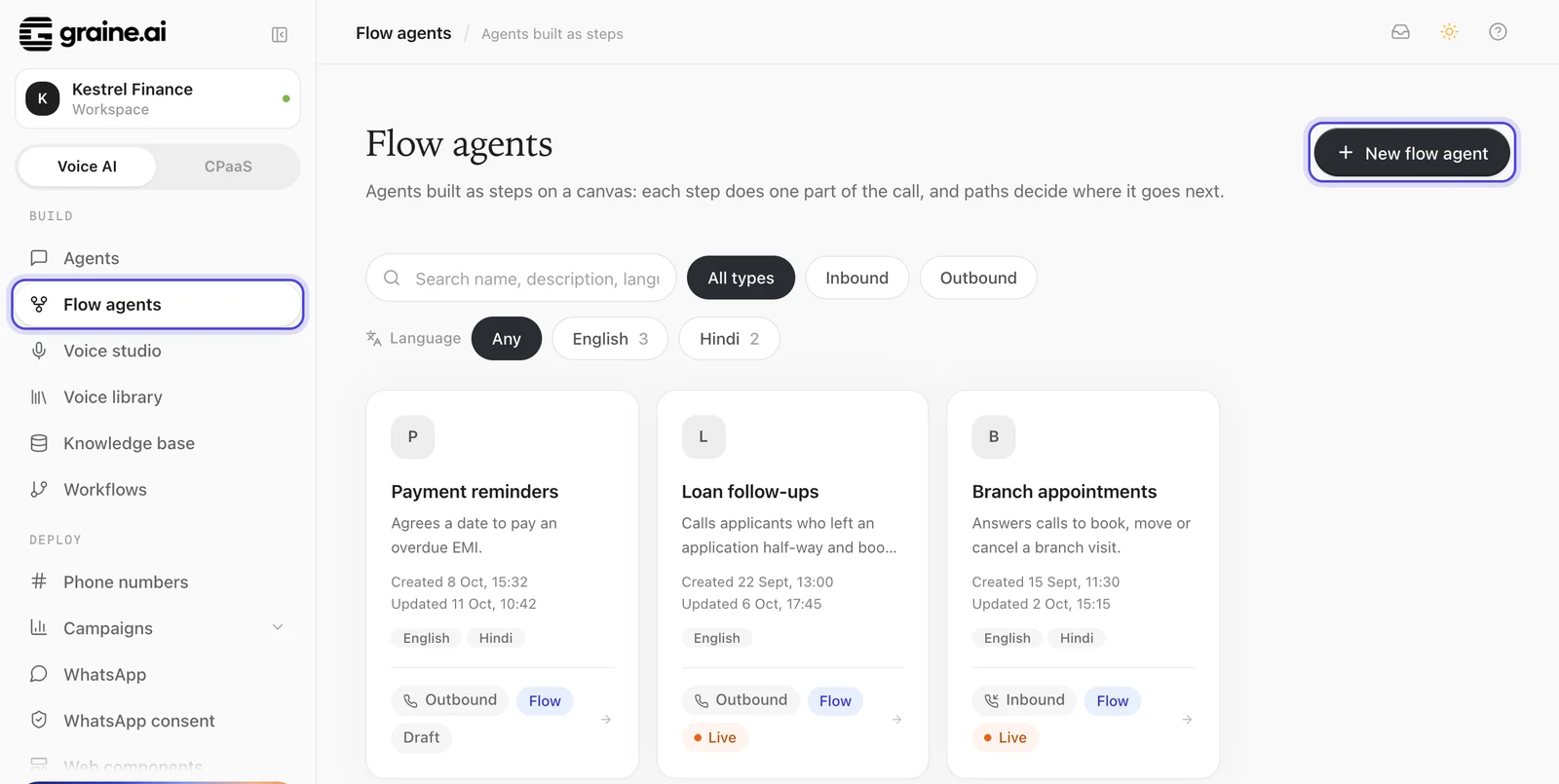
In the sidebar, under Build, open Flow agents. It lists every flow agent in the workspace; click a card to open that agent in the builder. Choose New flow agent, then pick what to start from and the language its lines are written in.
| Start from | What a call does | Steps | Variables it uses |
|---|---|---|---|
| Start blank | One AI reply step, Conversation, to build from. | Conversation | none |
| Appointment reminder | Confirms the appointment, finds a new time if they can't make it, then says goodbye. | Confirm the appointment → Find a new time → Goodbye | customer_name, business_name, appointment_date, appointment_time |
| Payment reminder | Checks who it is, checks the amount due, agrees a date to pay, then ends the call. | Check who it is → Check the amount due → Agree a payment date → Goodbye | business_name, customer_name, amount_due, due_date |
| Lead qualification | Introduces itself, asks a few questions, then books a demo or keeps in touch. | Introduce yourself → Ask a few questions → Book a demo → Keep in touch → Goodbye | customer_name, company_name, product |
| Support triage | Asks what the caller needs and sorts it to billing, technical help or sales, or asks again. | Ask what they need → Sort the request → Billing help → Technical help → Sales → Ask again → Goodbye | company_name |
Open the builder opens the new agent unsaved. It is named after its template (Untitled flow agent when you start blank), speaks the language you chose in one of Graine's voices for it, and replies on the default model. Rename it in the header, and pick its voice (one of Graine's voices for that language, or one from your own Voice Library) and its welcome message in Settings. Templates come with a welcome message and pass every check as they stand. Their lines are in English: rewrite them for an agent that speaks another language.
The first Save creates the agent, as a draft, and the builder moves to the agent's own address. Until then nothing is stored, and leaving the page asks first. Testing, the tool editor, saved versions and going live all need that first save.
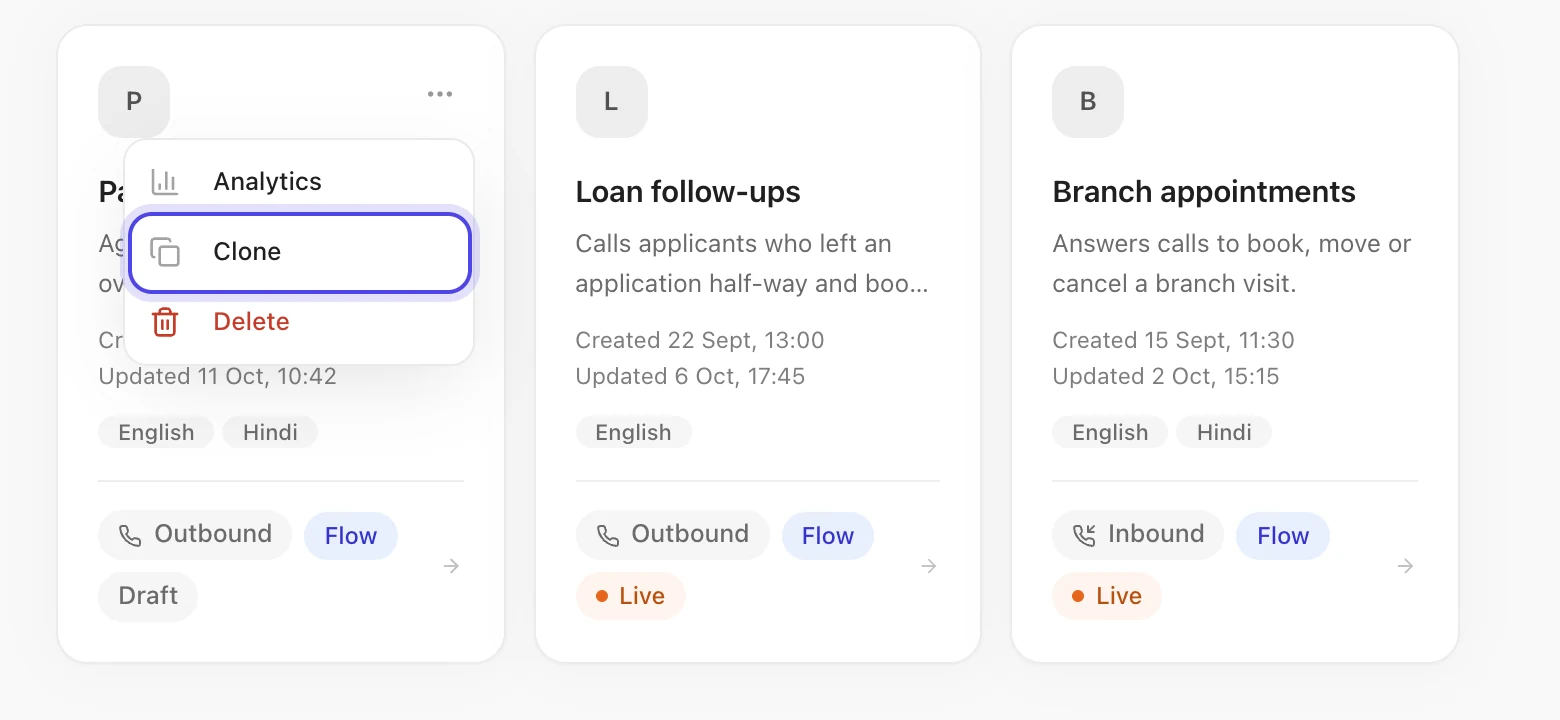
Copy an existing flow agent with Clone, on its card's menu in Flow agents or in the builder's header. The copy is a draft of the agent as last saved (its flow, settings and voice), named after it with "(Copy)", and it opens in the builder. Unsaved changes stay with the original, and the copy starts without the original's embed and widgets.
From a prompt agent
Open the agent in the agent editor and choose Convert to a flow agent. The prompt is split into draft steps that you can rename, rewrite, add to or remove, and a new flow agent is created with the same voice, model and call settings. The prompt agent itself is not changed.
Find your way around
The builder has four areas under one header.
| Area | What it is for |
|---|---|
| Flow | The canvas and the side panel: steps, paths and their settings. |
| Settings | Everything that isn't a step: name, briefing, welcome message and first step; models; voices and languages; how the call starts and ends; knowledge; the embed for your website or app; and the flow, call settings and tools as text. |
| Tools | The agent's tools, which steps each one is offered on, and call transfer. |
| Test | Talk to the agent by chat, web call or phone call, with the flow beside you. |
The header carries the agent's name (click to rename it), its status, whether your changes are saved, Embed & Widgets, Full agent editor, Clone, Undo and Redo, Check, History, Import / Export, Save, and Go live. Full agent editor opens the agent editor, which holds the settings every agent has, such as the calling window, webhook, goal and post-call analysis. There, where a prompt agent shows its prompt, a flow agent says This agent follows a flow and links back to the builder.
Every change, in any area, goes into one draft, and Save stores it all at once. Two places save on their own instead: the tool editor dialog (opened from Tools) and Embed & Widgets.
On the canvas
- Add a step with AI reply, Fixed line or Branch in the toolbar, or double-click empty canvas and choose one there.
- Join two steps by dragging from the dot under one step onto another. The new path starts as AI decides, with no condition yet. Let go over empty canvas instead and the builder adds a new step there, already joined; drag from the dot on top of a step to add the step that leads into it.
- Put a step between two others with the + on an arrow, or Insert step in the path's panel. The path then leads to the new step, and the new step moves on to the old destination with an Always path.
- Select a step, or the label on an arrow, to edit it in the side panel. Esc lets go. With nothing selected, the side panel shows the flow at a glance: how many steps and paths it has, its first step, and every problem found.
- Search steps finds steps by title, ID, what they say or a tool they use; Enter and Shift+Enter move between matches.
- Tidy up, in the zoom controls, lays the steps out again from the first step down. The minimap helps you find your place in a large flow.
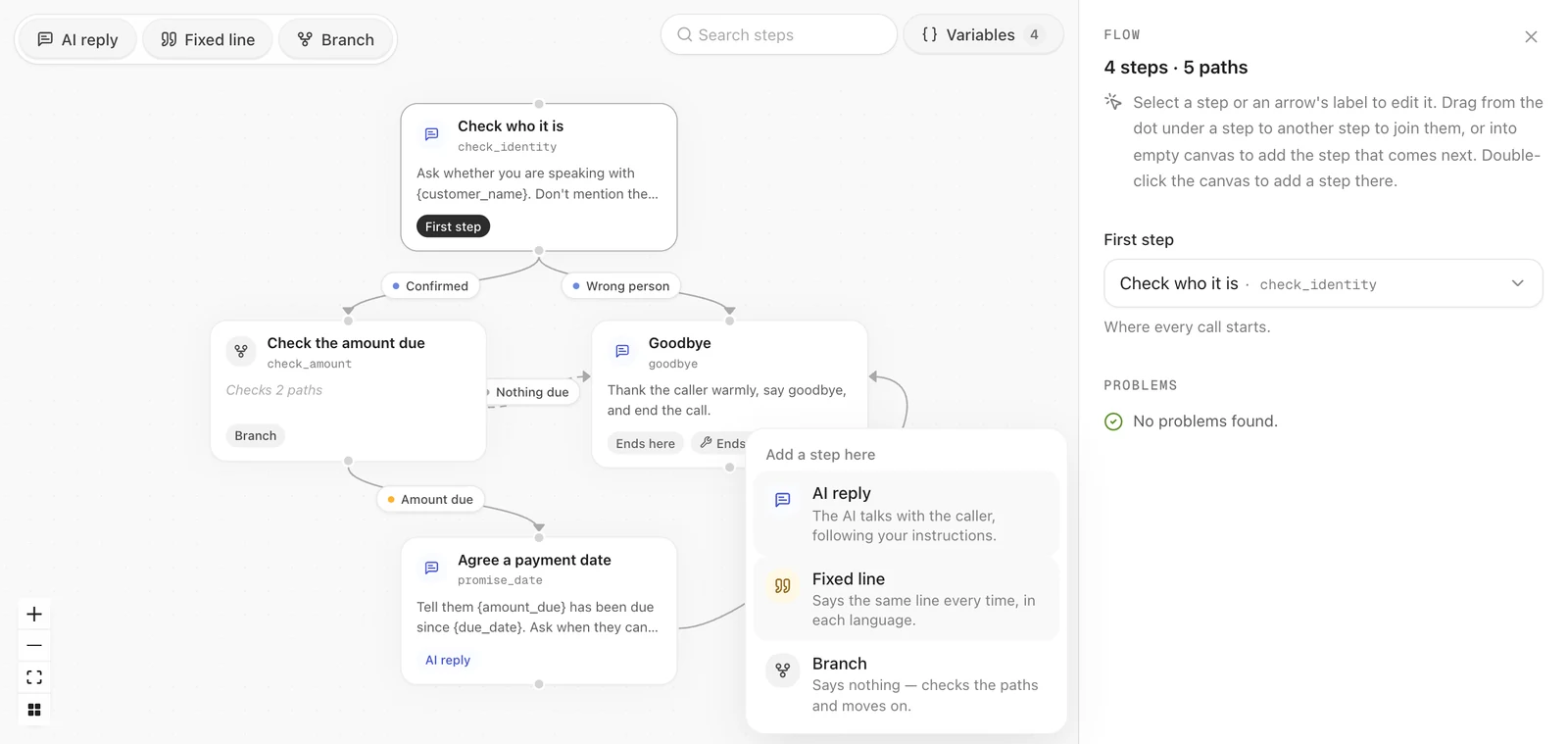
Each card shows the step's title and ID, the start of its instructions or line, and one badge: First step, Ends here (no paths out), Uses a tool, or its kind. A step that uses a tool also shows a chip naming it: Ends the call, Transfers the call or the tool's own name. A red mark on a card means a problem that stops a save; an amber one, a warning. Always paths are drawn dashed.
Nothing is deleted with a key press. Steps are deleted from their panel's ⋯ menu, after you confirm, and Undo brings them back.
A first flow: booking a demo
Here is a small flow built from Start blank. It calls a contact, offers a
product demo, finds a time if they want one, and ends the call politely either
way. It uses two variables a campaign would send, first_name and
company_name.
Write the briefing and the welcome message
In Settings › The agent, write the Briefing, which every step reads before its own instructions:
And the Welcome message:
Turn the starting step into the offer
Back in Flow, select the Conversation step. Under What this step
does, set its Title to Offer a demo and its Step ID to
offer_demo, then write its Instructions:
Add the two ways out
Drag from the dot under Offer a demo into empty canvas and choose AI
reply. Title the new step Find a time. Select the arrow's label and, under
When to take it, keep AI decides and write the Condition:
The caller would like a demo.
Do it again, this time choosing Fixed line. Title it No thanks, write the
line under What it says, for example "No problem at all. Thanks for your
time, and have a good day.", and switch on Hang up after this line. Give
its path the condition The caller isn't interested, or can't talk now.
Agree the time and close
Give Find a time its instructions:
Add an AI reply after it, titled Wrap up, on a path with the condition
The caller has confirmed a day and time. Open that path's Naming and
collecting section and, under Collect while taking it, choose Add
field: name it demo_time, keep Text, and in the box for what it means
write The day and time they confirmed, as they said it.
Give Wrap up these instructions, then open Fine-tune this step and set Uses a tool to End the call:
Check, save and try it
Check in the header should report nothing that stops a save. Open
Variables in the canvas toolbar and give first_name and company_name
defaults, so a test reads naturally. Then Save, open Test and choose
Chat: type as the caller and watch the call move from step to step.
From here, Steps covers every setting a step has, Paths and decisions adds rules and branches, and Test and fix a flow shows what to do when a test goes somewhere you didn't expect.
Settings
Settings holds everything that belongs to the agent as a whole, in seven tabs.
| Tab | What you set there |
|---|---|
| The agent | Agent name; the Briefing, what every step knows (who the agent is, who it is calling and why, the facts it may need); the Welcome message, said as soon as the call connects; and the First step. |
| Models | The model that writes replies, and the model that chooses the next step. See Models. |
| Voice & languages | For each language the agent speaks, its voice (from Graine's voices or your Voice Library) and how the caller's speech is recognised. Adding or removing a language, previewing voices, keyword boosting and turn-taking are in the agent's full voice settings (Open Voice Settings). |
| On the call | How the call starts, how the agent handles interruptions and silence, when the call ends, and voicemail. See On the call. |
| Knowledge | A document library for the whole agent. See Answer from your documents. |
| Embed & Widgets | The agent on your website or in your app: the code to add it, where it may run, the widgets it can show and the actions it can take. It needs the agent saved once, and it saves on its own, not with Save. See On your website and in your app. |
| Advanced | Text for anything without a form, in three views: Raw flow (the flow as it is saved, and the only place in the builder to add a path that waits for an event), Raw call settings (every call setting by its name, including ones with no switch in the builder) and Raw tools (the agent's tools as a list). See Editing as text. |
The briefing is part of every reply the agent writes, so keep it to what is true on every step: who the agent is, how it speaks, what it must never do. Anything that matters on one step only belongs in that step's instructions.
Models
The tab has two parts. Replies sets the model the agent speaks with; Choosing the next step sets the model that decides which AI decides path the call takes. They are independent: a quick Azure model can choose paths for an agent that replies on Sarvam, or the other way round.
Replies
- Provider: Azure or Sarvam. Switching picks that provider's default model.
- Model: see the table below. A step can reply on another model from the same provider (see This step's own model).
- Temperature: from steady (0) to varied (1). A GPT-5 model always runs at 1, and the slider is replaced by that value.
- Max tokens: the longest single reply, from 1 to 4,000.
- Reasoning effort and Verbosity: these appear when the model is a GPT-5 model. Verbosity (Low, Medium or High) sets how long its replies tend to be. A Sarvam reply model runs with its reasoning off; the builder has no setting for it.
Choosing the next step
- Provider: Azure or Sarvam, for decisions. Switching picks that provider's default and clears the effort.
- Decision model: the model that decides paths on every step, unless a step picks its own.
- Decision effort: how hard a GPT-5 decision model thinks before it picks. Left unset it reads Least thinking (none). Any other model has no such setting, and the box says so.
- Decision max tokens: the longest answer the decision model may give. Left empty, it is 250.
- Decision guidance: optional rules for choosing paths that apply on every step, such as "If the caller asks for a person, always take the path to a human." It can use variables. See Decision guidance.
| Model | Provider | Reasoning effort |
|---|---|---|
gpt-4.1-mini | Azure | None. The default for replies and for decisions. |
gpt-4o-mini | Azure | None. |
gpt-4o-mini-2 | Azure | None. The same model on separate capacity. |
gpt-4.1-nano | Azure | None. |
gpt-5.4-mini | Azure | None, Low, Medium or High, or left at the default. |
gpt-5.4-nano | Azure | None, Low, Medium or High, or left at the default. |
sarvam-105b-conversations | Sarvam | None. The default when you switch to Sarvam. |
sarvam-105b | Sarvam | None. |
A model an older agent was saved with that is no longer offered stays selected and is marked (unavailable), so opening an agent never changes it behind your back. It has to be replaced before the agent can be saved.
On the call
These work the same way for every agent.
| Setting | What it does |
|---|---|
| Ignore the caller until the welcome message is said | Words spoken over the welcome message don't interrupt it. |
| Pause before the welcome message | Waits this long after the call connects, from 0 to 1,000 milliseconds. |
| Words before the caller can interrupt | The caller cuts in once they have said more words than this over the agent; at 0 the agent can't be interrupted. A step can have its own. |
| Check the caller is still there | After this many seconds of silence, asks whether the caller is still there, in words you write for each language. |
| End the call after a long silence | Ends the call when the caller says nothing for this long. |
| Maximum call length | Ends the call at this length, wherever the conversation is. |
| The agent hangs up when the conversation is over | After each reply, checks your description of a finished conversation; when it matches, the agent says the goodbye message and hangs up. |
| Goodbye message | Said just before the agent hangs up. A step that ends the call says its own goodbye instead, and this message is not added after it. |
| Let the caller talk over a closing step | On a step that ends the call, a caller who speaks over the goodbye stops the hang-up and the step speaks again. Off, the goodbye always plays to the end. See How a call ends. |
| Detect voicemail | Listens to the start of the call and hangs up if a machine answered. |
If you want calls to end only on the steps you built for it, switch off The agent hangs up when the conversation is over. The silence, length and voicemail settings still apply.
Editing as text
Settings › Advanced shows parts of the agent as JSON for changes that have no form, or that are quicker as text: Raw flow for the flow itself (the only place in the builder to add a path that waits for an event, and handy for one change across many steps), Raw call settings for every call setting by its name, and Raw tools for the agent's tools. Apply to draft works once the text parses and, for the flow, passes the same checks as any edit; Back to the draft throws your edit away. Applying only changes your draft: Save keeps it, and Undo takes it back. In Raw call settings, a setting you leave out keeps its value.
Next: Steps.